

Key Takeaways
- A concurrent-login cap stops two people from being signed in at once, but it only slows partners who take turns, so pair it with detection and a team-seat offer for study partners who share for the length of a course.
- Set a device limit only after students have a self-serve way to reset a device, because every replaced phone or cleared browser otherwise becomes a support ticket.
- Turn on the email one-time password or Google sign-in that your course platform documents, but expect friction rather than a closed door on Teachable and Kajabi, which keep a password route open as of November 2026.
- Gumlet, the all-in-one video hosting platform, offers a dynamic watermark (Business plan and above) that shows each student’s name, email, or user ID, which deters the account owner from leaking or reselling the login and traces any leak, but does not block screen recording.
- Watch an account for at least 14 days before acting, then escalate from a warning email with a seat offer to a forced sign-out, and suspend only if sharing continues.
- Offer team or group licenses priced below the same number of single seats, so friends who already share a login have a legitimate way to pay.
To stop students from sharing course logins, stack three layers: a barrier (Fix 1 and Fix 2) that makes casual sharing inconvenient, a deterrent (Fix 3) that puts each student’s name on every lesson, and a paid route (Fix 5) for the people who already share, with detection (Fix 4) before any enforcement. This seat-recovery stack suits creators who sell individual seats on a course platform.
The main exception to putting a barrier first is a hard device cap, which fails students who replace a phone and cannot reset the device themselves, so build the reset path before the cap. A session cap alone is enough only when sharers watch at the same time.
In a July 2026 post on account sharing on e-learning platforms, C/side, a vendor of account-sharing detection software, reports that the most common pattern it observes is two study partners using 2 to 3 devices from separate locations on one account for the length of a course. The post publishes no sample size or method, so read the figure as one vendor’s observation. Those partners split one course fee, which makes them future customers as much as a revenue leak.
Gumlet is an all-in-one video hosting platform that course creators use to host, protect, and measure lesson video. The login settings below belong to your course platform, so each fix ends with a note for creators who host lesson videos with us, and the plan tiers named in those notes are current as of November 2026.
Below are five fixes and the sharing pattern each one stops: Fixes 1 to 3 stop casual sharing, strangers, and leaked recordings, while Fixes 4 and 5 handle the study-partner pattern. Fix 1 and Fix 2 also show how to set each up on the learning management system (LMS) you use, whether that is LearnDash, Thinkific, Teachable, Kajabi, or LearnWorlds.
How Can You Tell if Students Are Sharing Course Logins?
You can tell students are sharing logins when one account shows more devices, locations, or watch hours than a single person produces. No single signal proves it, so look for two or more of these signs on the same account:
- Several devices on one account: A phone and a laptop are normal, but a steady stream of new devices that never appear twice is not.
- Logins from different cities or countries: Watch for impossible travel, meaning two sign-ins from places too far apart to cover in the time between them.
- Watch hours no single person could manage: An account that logs more viewing in a day than its owner could plausibly sit through belongs to more than one person.
- Progress jumping around between lessons: On Thinkific, two people on one account overwrite each other's progress, because the course player resumes wherever the last person to sign in stopped.
As of November 2026, Thinkific’s help center points creators to the sign-in count and Internet Protocol (IP) address columns in the Users table and to its Mixpanel integration, which records a device ID for each visit.
Do not act on IP addresses alone. Students switch between home Wi-Fi, campus networks, and mobile data, so a new IP address is a weak signal.
Fix 1: Limit Active Sessions and Devices
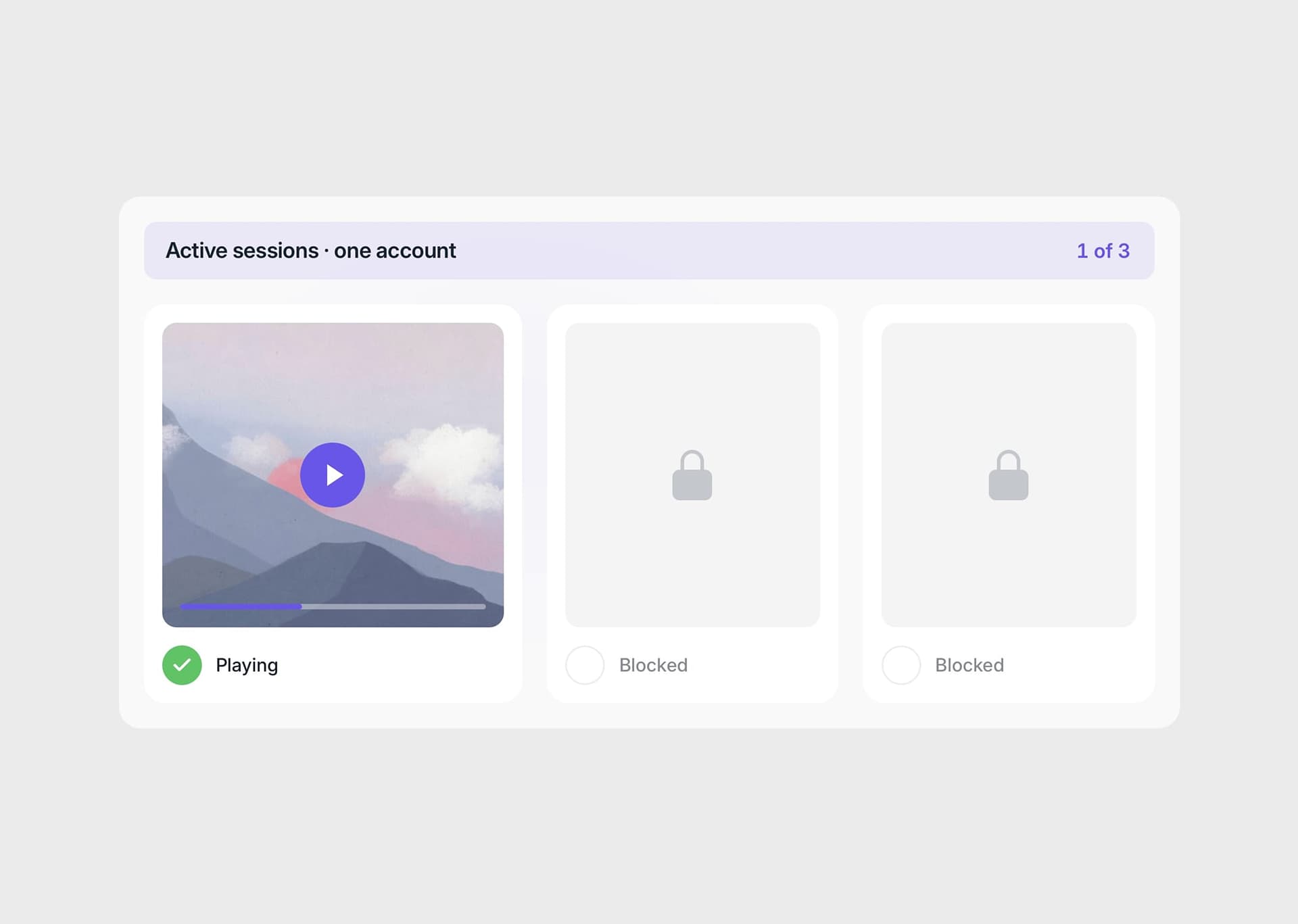
Limiting active sessions and devices stops two people from being signed in to one account at once, and on a WordPress site it is the fastest of the five fixes to turn on. It only slows students who take turns, so treat it as the first layer of the seat-recovery stack, not the whole defense against course password sharing.
Why does time-shifted sharing slip past concurrent caps?
Session limits cap how many signed-in sessions an account holds at once, while device limits cap how many distinct devices can ever use it. Time-shifted sharing is when two or more people use one account at different times, for example one partner studying at night and the other at lunch.
A session cap evaluates only when a new login happens, and it counts signed-in sessions rather than active viewing. If each partner signs out, or a session expires, before the other signs in, the cap never fires.
If sessions stay open, a cap of 1 in Logout Oldest or Logout All mode ends the first partner’s session at the second partner’s sign-in, which adds friction for both partners without stopping the sharing. The Loggedin WordPress plugin documents the same behavior: it acts only when a new login happens.
A device limit gets closer, because every new device counts against the cap, but a pair on one device each still fits inside a two-device limit.
How to limit concurrent logins on each LMS (as of November 2026)
| Platform | Built-in or first-party option | Add-on route |
|---|---|---|
| LearnDash | Integrity add-on (free, first-party) with Prevent Concurrent Login, which blocks a second login while the first session is active. A profile setting allows selected users to be exempted. | Loggedin |
| Other WordPress LMSs | No built-in option in core WordPress. | Loggedin, with Logout Oldest, Logout All, or Block New modes. Per-role login limits require the separate Limit Per Role add-on. |
| Thinkific | No built-in option. Its help center states that it cannot block account sharing by IP address or sign-in frequency (checked November 2026). | miniOrange device restriction or Rupt (script in Site footer code). |
| Teachable | No concurrent-login limit found in its help documentation (checked November 2026). | Rupt (script in Logged in snippets). |
| Kajabi | No built-in option. Its help center states that it does not enforce concurrent-login or device limits (checked November 2026). | Rupt (script in Page scripts). |
| LearnWorlds | Do not allow multiple sessions keeps only the latest login active and disconnects earlier sessions. Force Logout signs out idle users (checked November 2026). | Rupt (script in the logged-in head custom code). |
Pick Logout Oldest over Block New for paid courses, because Block New also locks out the student who just replaced a phone.
A device limit also has a ceiling: it must sit at or above the devices one student plausibly owns, such as 3, so a sharing pair that totals 2 to 3 devices passes it, which is why Fix 4 reads location history along with device count. Move an account to stricter settings only after detection has flagged it.
If your lesson videos are on Gumlet: Turn on time-limited signed URLs (Growth plan and above), so a video link copied out of a logged-in session stops playing once its expiry passes, even partway through a video. Turn off MP4 generation in that workspace, because MP4 outputs play without a token. Per-session tokens come from code that signs each URL with your workspace secret key, which suits a custom LMS or WordPress site more than a hosted platform where you cannot run server code. A dashboard-generated expiry embed code works for fixed-window shares.
Our video protection page shows how signed URLs sit beside the other playback controls.
Fix 2: Make the Login Belong to One Person
Making the login belong to one person means replacing a shareable password with a credential tied to the student’s own email, phone, or Google account. Sharing a password takes seconds, while sharing an inbox or a Google account hands over far more than course access.
Four methods do this:
- Email one-time passwords (OTP) that a sharer must forward at every sign-in
- Magic links, which email a single-use sign-in link to the student
- Two-factor authentication (2FA) on the student's phone
- Social login through Google or Apple
As of November 2026, Teachable, LearnWorlds, and Kajabi each document a student sign-in that ties the login to an emailed code or a Google account, so the login itself can carry the student’s identity. A code or social login does not stop a student who shares the inbox or Google account itself, which is why detection (Fix 4) and a team seat (Fix 5) follow.
Which platforms support identity logins natively?
- LearnWorlds lets a school owner turn on social login through Google, Facebook, LinkedIn, Apple, or X (Twitter) under Website, then Website Settings, then Authentication.
- Teachable offers a one-time-password login portal and an optional “Log in with Google” button, and the school owner can turn the Google button on or off.
- Kajabi limits two-factor authentication to account owners and account users, but a school owner can turn on Google sign-in for members under Settings, then Member sign in and security.
- Thinkific offers student sign-in alternatives through JSON Web Token (JWT) single sign-on, which third parties such as miniOrange build on and sell as single sign-on and multi-factor authentication for Thinkific schools.
WordPress and LearnDash have no identity login in core, but the free Two Factor plugin adds emailed one-time codes on top of each student’s password. Each student turns it on in their own profile, so it covers every student only when a developer requires it through the plugin’s filters.
An identity login only stops sharing once the password route closes too. As of November 2026, Teachable’s login page still offers “Log in with password instead” to any student who has set a password, and Kajabi members can still create a password account alongside Google sign-in, so on both platforms the identity login is an extra door rather than the only one.
LearnWorlds can close that door for schools whose learners sign in through an identity provider: with SAML single sign-on in place (Learning Center plan or higher) and the built-in LearnWorlds login switched off, LearnWorlds passwords stop working.
Turn on a native identity login first when your platform provides one, because it needs no separate tool and adds only one step to each sign-in. Hold off on a paid single sign-on layer until detection (Fix 4) shows that sharing costs you more than the tool would.
If you sell a video-only course or a members’ library on Gumlet: a private channel (Growth plan and above) emails each invited student a secure link, and the student joins by creating or signing in to their own Gumlet account with the invited email address. Videos set to Private play only inside the channel, so only invited people can watch. A member can still hand those credentials to a friend, which is why Fix 3 pairs well with it.
Fix 3: Put the Student's Identity on Every Lesson
Putting the student's identity on every lesson means showing their name or user ID on screen while they watch, on their certificate, and on their dashboard. It deters the account owner from recording lessons or reselling the login widely, though two study partners who already know whose account it is will keep sharing.
A dynamic watermark is a text overlay that shows viewer-specific details, such as a name or user ID, and moves around the video during playback. The friend on a borrowed login sees the owner’s name on every lesson, and any screen recording carries the same identifier, which makes a leaked copy traceable to its account.
For example, a leaked clip stamped “u4821” points to student 4821 in the course platform’s user table, so the account owner has to explain who else was signed in. Show a user ID rather than an email address, because a leaked recording publishes whatever the overlay displays.
Smaller touches help too. As of November 2026, Thinkific allows one certificate per course per account, so a second person on a shared login cannot claim their own, and a dashboard greeting the student by name shows whose account a friend is borrowing.
A watermark deters and traces. It does not block screen recording, so do not promise students, or yourself, more than that.
If your videos are on Gumlet: the dynamic watermark (Business plan and above) can show each student’s name, email, or user ID on screen. In LearnWorlds, the course player supplies the student’s details as embed variables such as {{USER_ID}} and {{USER_NAME}}, which you add to the embed URL through the watermark_text parameter. Watermarks do not show in native iOS playback.
Gumlet’s WordPress plugin has settings that turn on name, email, and user ID in the watermark for WordPress sites. On a WordPress or custom site that can run server code, turn on signed URLs (Growth plan and above) and sign each student’s embed URL, because the signature covers the watermark text and an edited link stops playing.
On a hosted platform such as LearnWorlds, you cannot sign each student’s URL, so the watermark still deters and traces, but its text is not protected from edits. Signed URLs cover a whole workspace, so keep these videos in one without them.
Fix 4: Detect Sharing Patterns Before You Enforce
Detecting before you enforce means watching device, location, and watch-time signals for at least 14 days, the window C/side’s detection guidance uses, confirming a pattern, and only then acting. Detection catches time-shifted sharing that a session cap misses, because it reads account history across weeks instead of one login.
Which signals and tools actually catch sharing?
The useful signals are device history, location history, impossible travel, and watch time no single student could log. Treat them as a score: one signal is usually a new phone or a trip, while two or three on the same account in the same week form a pattern.
To add detection on Teachable, Kajabi, Thinkific, or LearnWorlds, Rupt installs as a script in each platform’s custom code area: Logged in snippets on Teachable, Page scripts on Kajabi, Site footer code on Thinkific, and the logged-in head tab on LearnWorlds.
Rupt’s access protection docs list concurrent sessions, impossible travel, and device count as the checks that trigger a challenge to the extra viewer. Detection collects device IDs, IP addresses, and locations, so name that data and its purpose in your privacy policy.
What should the enforcement ladder look like?
- Warning email with a seat offer: Assume good faith, restate that accounts are personal, and offer the second person their own seat at a team rate (Fix 5).
- Forced sign-out: Reset the password where students still have one, or end the account’s active sessions where your platform allows it, so the next share becomes a deliberate choice.
- Suspension: Reserve it for accounts that keep sharing after the first two steps, under the consequences in your terms of use.
Detection is a sales list before it is an enforcement list.
If your videos are on Gumlet: Pass each student’s ID and email into the embed code, and our user-level analytics show how many times and for how many hours each student watched, filtered by user ID or email. Viewer-level metrics are limited on the Free, Creator, and Growth plans, and the Business plan adds full viewer metrics and custom dashboards. LearnWorlds supplies those details as embed variables, and the WordPress plugin has a setting that tracks logged-in users.
Fix 5: Make the Honest Option Easier Than Sharing
Making the honest option easier means giving sharers a cheaper, legitimate route to their own access: team or group licenses, a clear terms-of-use line at checkout, and fair pricing for students in other regions. A person who has worked through a course on a borrowed login has already shown they value it.
- Team or group licenses: A bundle of three or five seats priced below the same number of single seats turns a study group into one purchase.
- A terms-of-use line at checkout: One sentence stating that the account is personal and non-transferable sets the expectation early, and, as of November 2026, Thinkific’s help center notes that creators commonly write consequences such as unenrollment into their terms.
- Regional pricing: Pricing matched to local purchasing power removes one reason to split a login.
If your team buyers watch on Gumlet: Add each seat as a member of a private channel (Growth plan and above) by email, by uploading a comma-separated values (CSV) file, or through our video application programming interface (API), which is available from the Creator plan and accepts up to 200 viewers per request. When a seat lapses, remove that member by email through the same API.
How much should a team license cost?
Price the bundle between the cost of one seat and the cost of the same number of single seats. For illustration, take a course sold at $297 per seat and a 3-seat bundle at $597. Three single seats cost $891, so the bundle is $294 less, a 33% discount, at about $199 per seat. A study group that shares one seat today pays $297, so converting it to the bundle adds $300.
Publish the bundle at checkout for groups that buy together, and keep a separate discounted upgrade for accounts that detection flags, as the ladder in Fix 4 does. Keeping that upgrade off the checkout page stops it from pulling in buyers who would have paid for single seats.
Which Fix Should You Start With?
Start with the cheapest barrier your platform supports (Fix 1 or Fix 2) to stop students from sharing course logins with strangers and casual contacts, then add a deterrent (Fix 3) against leaks. Set up detection (Fix 4) and a revenue path (Fix 5) for study partners before you enforce anything.
| Fix | Stops | Effort | Annoys honest students? | Works on |
|---|---|---|---|---|
| 1. Session / device limits | Simultaneous sharing (slows turn-taking) | Low on WordPress and LearnWorlds; third-party script elsewhere | Sometimes, when devices change | LearnWorlds through its Do not allow multiple sessions setting; LearnDash through its free first-party Integrity add-on; other WordPress sites through the free Loggedin plugin; Thinkific, Teachable, and Kajabi through a third-party add-on such as Rupt |
| 2. Personal login | Casual password forwarding (not a shared inbox or Google account) | Low where native | Rarely | Teachable and Kajabi (Google only) beside the password; LearnWorlds through social login, or SAML with the built-in login disabled (Learning Center and above); WordPress through the Two Factor plugin; Thinkific through miniOrange |
| 3. Identity on every lesson | Recorded leaks and wide resale of a login (deters and traces) | Low to medium | Rarely; some students dislike a visible name | Any platform whose player shows viewer details |
| 4. Detection and enforcement | Time-shifted sharing over weeks | Medium | Only if you act on one signal | Thinkific shows sign-in count and IP address natively; Rupt documents Teachable, Kajabi, Thinkific, LearnWorlds, and WordPress setups |
| 5. Team licenses | Groups that would pay together | Low | No | Any platform (a pricing decision) |
The seat-recovery stack splits the work by sharer: the barrier and the deterrent handle casual sharing, strangers, and leaks, while detection and the revenue path handle study partners who take turns for the length of a course.
Choose Fix 1 as your barrier on a WordPress or LearnWorlds site, because Loggedin’s Logout Oldest mode, LearnDash’s Integrity add-on, and LearnWorlds’ session setting cost nothing extra. Choose Fix 2 when your platform offers one-time passwords or Google sign-in, because the login then carries the student’s identity.
A Fix 1 device cap fails students who cannot reset a device on their own, so where they have no self-serve reset, use Fix 2 as the barrier instead. On WordPress, Fix 1 and Fix 2 together also make turn-taking cost something: a Logout Oldest cap forces a fresh sign-in at every swap, and an enforced emailed code makes that sign-in need the owner’s inbox.
Gumlet’s private channels (Growth plan and above) and dynamic watermark (Business plan and above) cover the video side of Fix 2 and Fix 3. Signed URLs (Growth plan and above) solve a separate problem, a copied lesson link playing outside your course, and our pricing page lists the plan that carries each.
Which Mistakes Weaken a Login-Sharing Defense?
Five mistakes weaken a login-sharing defense in online courses: relying only on session caps, acting on a single signal, locking students to one device with no reset path, leaving copied video links playable, and offering no team plan. Each bullet below states what the mistake costs.
- Relying only on concurrent-login caps: They only slow time-shifted sharing.
- Banning on the first signal: A new city is usually a trip or a new network.
- Locking students to one device with no reset option: Every replaced phone becomes a support ticket.
- Protecting the login but leaving video links shareable: A copied video URL plays anywhere unless it expires or is restricted to your domain. Gumlet’s signed URLs (Growth plan and above) expire a link, and domain restriction (Creator plan and above) limits playback to approved sites, which is also where any plan to prevent students from downloading course videos has to start.
- Having no team plan at all: Without one, a shared login is the only way for friends to buy together.
Widevine and FairPlay DRM is free for your first 5 videos on any Gumlet plan, including Free. DRM for more videos is a $99/month add-on on paid plans and is included on the Enterprise plan. DRM controls how the video plays and says nothing about who is signed in to your course platform, so it complements Fix 1 to Fix 4 instead of replacing them.
Frequently Asked Questions
1. Do Thinkific, Teachable, Kajabi, or LearnWorlds limit concurrent logins?
Only LearnWorlds does natively: its Do not allow multiple sessions setting keeps a user’s latest login and disconnects the earlier one. As of November 2026, Thinkific’s help center says it cannot block sharing by IP address or sign-in frequency, Kajabi’s says it enforces no concurrent login or device limit, and Teachable’s lists none, so those three need an add-on.
2. How long should I monitor an account before warning a student?
Monitor an account for at least 14 days before sending a warning, because C/side’s guidance builds its sharing signal from a 14-day device history with independent locations. One signal in that window is usually a new phone or a trip, so act only when two or three signals appear on the same account.
3. What should a warning email to a suspected sharer say?
Name the sign-in pattern you saw, quote the terms-of-use line that accounts are personal, and offer a team seat or a device reset. Keep the tone neutral, because one signal alone can still be a trip or a new network. Send the email before any forced sign-out or suspension.
4. Can I suspend a student for sharing a login?
Suspending a student is usually a question of your own terms of use. If the terms state that the account is personal and non-transferable and say what happens when it is shared, a suspension enforces an agreement the student accepted. Refund rights and consumer rules differ by country and state, so publish the rule at checkout first.
Disclaimer: This section is for general informational purposes only and does not constitute legal advice. Laws and regulations change over time; the information above reflects publicly available sources as of the article’s publish date. Consult a qualified professional before making compliance decisions.
5. Is login sharing the same problem as video piracy?
Login sharing and video piracy are different problems: login sharing hands another person your credentials, while video piracy copies the video itself by downloading, capturing the stream, or recording the screen.
Session limits and one-time passwords address sharing, while video controls address piracy: Gumlet’s signed URLs (Growth plan and above) and dynamic watermark (Business plan and above) are two examples.
How Should You Roll Out the Stack in Your First 30 Days?
Roll out the seat-recovery stack in this order. In week 1, turn on the identity login, add the terms-of-use line, and publish the team license.
In weeks 1 and 2, watch accounts for 14 days without acting. In weeks 3 and 4, send warnings and team-seat offers to flagged accounts, sign out accounts that keep sharing, and suspend only if sharing continues.
If your lessons are hosted on Gumlet, the video-level pieces of the stack sit in your dashboard: signed URLs and private channels from the Growth plan, and the dynamic watermark and custom viewer analytics on the Business plan and above.
Our video hosting for course creators page shows how they fit around the course platform you already use. To walk through your own setup, schedule a demo with us.


