







How to generate Video Optimization Report?
Here's a step-by-step guide on how to use this video tool.
Step-1
Firstly, to use this tool, click on "Upload Video" and upload an mp4 video file that is less than 1000MB in size. To increase the upload size limit, you can sign up to Gumlet.

Step-2
Once you have uploaded your file, the tool will analyze the video and generate a report that compares your video to the Gumlet transcoded version.
Step-3
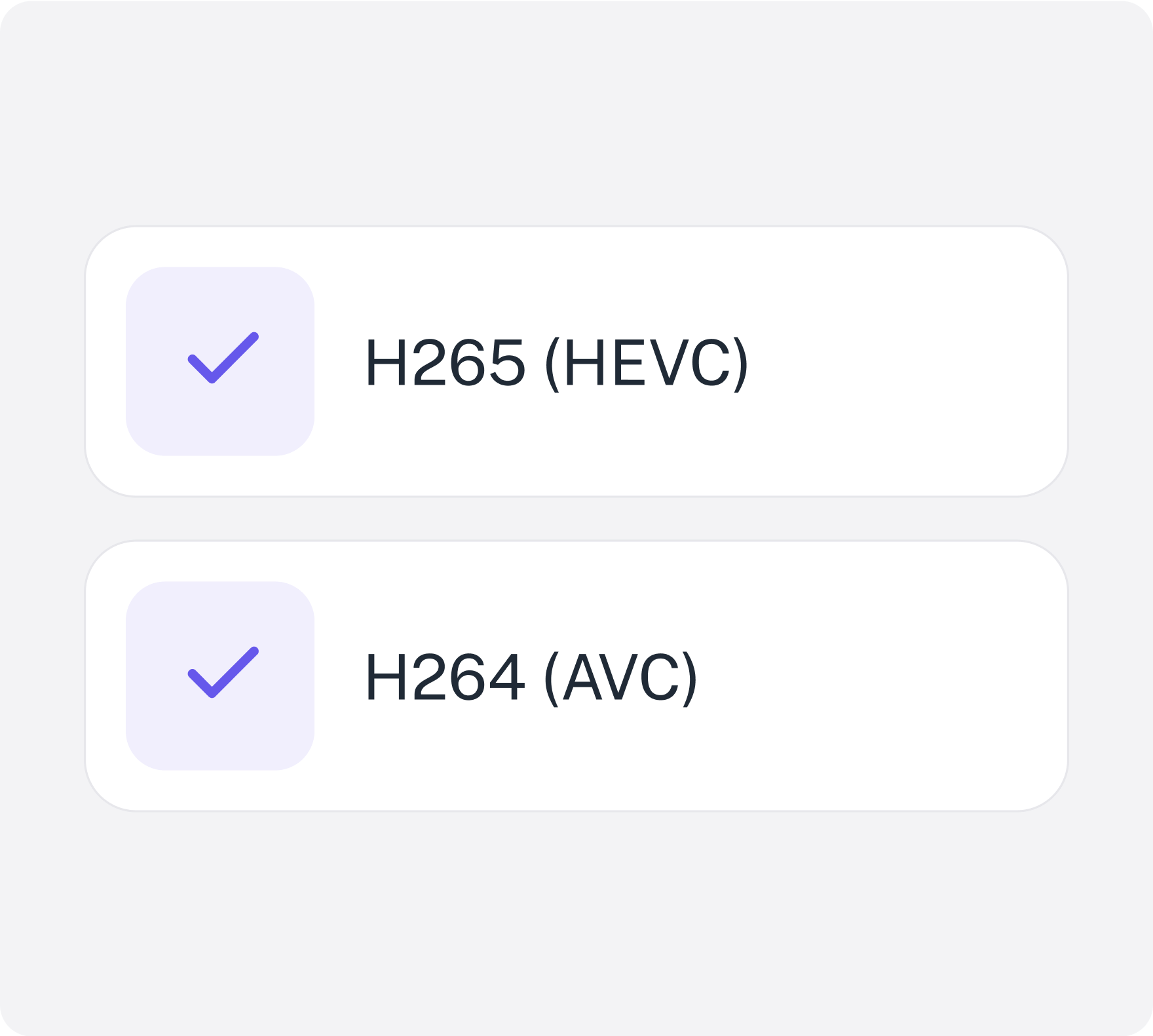
The report will show you the lowest video bitrate, optimal VMAF score, best video codec, and various resolutions for streaming. Use this to optimize your videos for better performance and delivery.

How does this Video Optimization Report help you?
Using the Gumlet Video Optimization tool offers several advantages:
Informed Optimization
The tool provides detailed insights into your video's performance, allowing you to make data-driven decisions for optimization.

Improved Quality
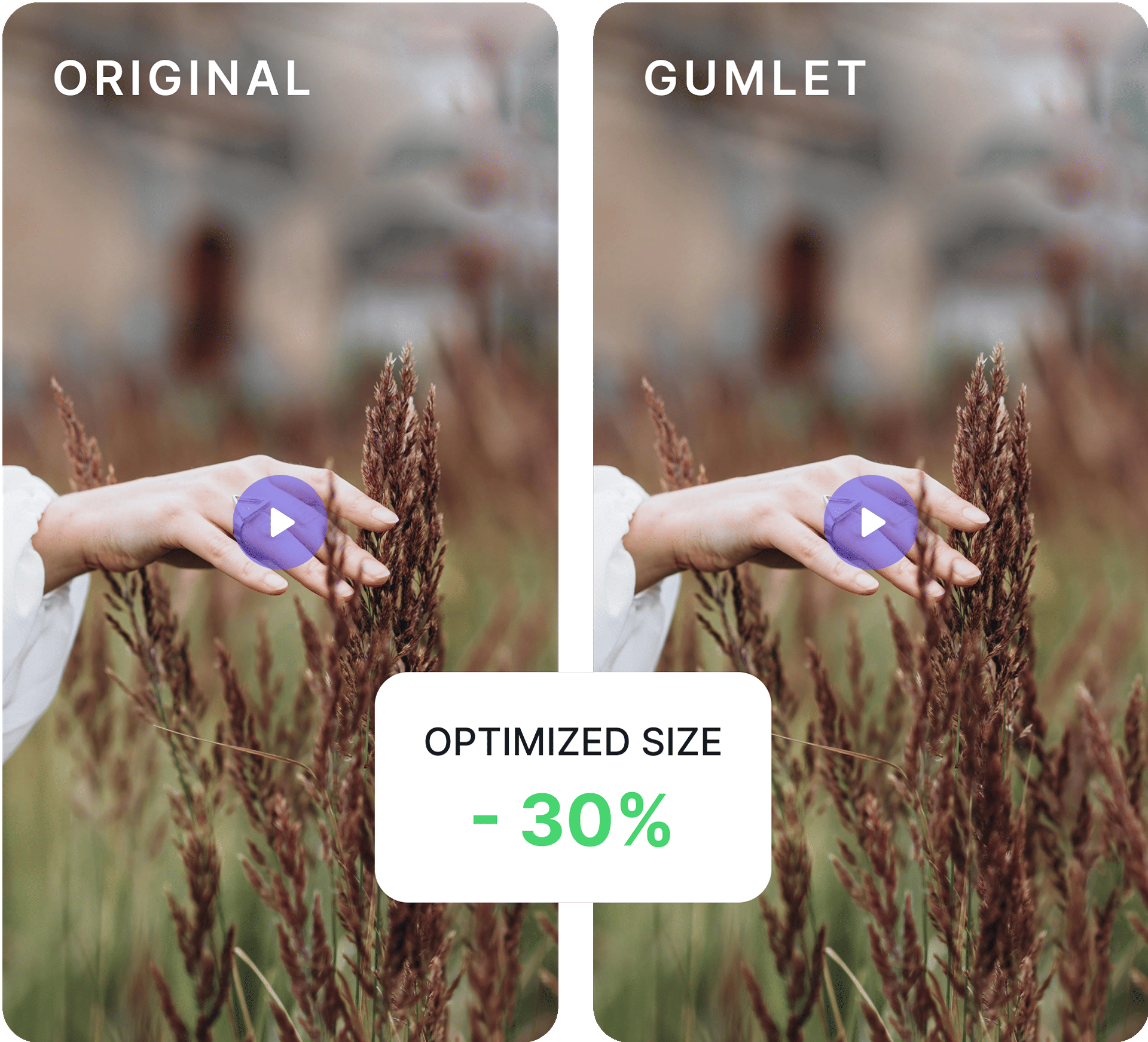
By comparing your video to the Gumlet transcoded version, you can identify opportunities to enhance video quality while maintaining or reducing file size.

Enhanced Delivery
Optimized videos can lead to faster loading times and smoother playback experiences for your viewers.

Cost Savings
By reducing file sizes and improving delivery efficiency, you can potentially save on bandwidth costs.
How is this Video Optimization Report Generated?
Gumlet has built the world’s most efficient video transcoding engine. Our tool generates its report through a multi-step process:
Video Analysis
The tool analyzes the uploaded video to extract key metrics such as resolution, bitrate, codec, and frame rate. With AI-powered per-title-encoding technology, we check the content of the video to determine the lowest possible bitrate without affecting viewing quality.
Transcoding
Gumlet transcodes your video with optimized settings for efficient streaming, ensuring maximum compression while maintaining a VMAF score above 90. It applies the latest H265 (HEVC) codec and HLS protocol for superior performance.
Comparison & Report Generation
The tool compares the original and transcoded videos, identifying differences in file size, quality, and performance metrics. Based on the comparison results, the tool generates a comprehensive report that highlights the key findings and provides recommendations for optimizing the video.
What will this Video Optimization Report tell you?
The tool will provide you with valuable insights into your video's performance, including:
Lowest Video Bitrate
The minimum bitrate required to achieve acceptable video quality while minimizing file size.
Size
The file size of both the original and transcoded videos, allowing you to compare their relative sizes.
Optimal VMAF Score
The VMAF score that represents the best balance between video quality and file size.
Best Video Codec
The most suitable video codec for your specific use case, considering factors like quality, compatibility, and file size.
Who should use this Video Report?
This video optimization tool is a valuable resource for a wide range of individuals and businesses involved in video production and delivery, including:
Video Creators
Those who use video editing or export tools can benefit from the tool's insights to optimize their videos for better performance and sharing.
Video Engineers
Professionals working with video encoding tools like FFmpeg can use the tool to evaluate different encoding settings and improve their workflows.
Streaming Service Providers
Companies that use cloud platforms like AWS for video streaming or delivery can leverage the tool to optimize their video content for efficient distribution.
Content Marketers
Those who create and distribute video content can use the tool to ensure their videos are optimized for maximum engagement and reach.
FAQs
Frequently Asked Questions
Clear answers to common questions, so you can get back to hosting your videos.