Key Takeaways
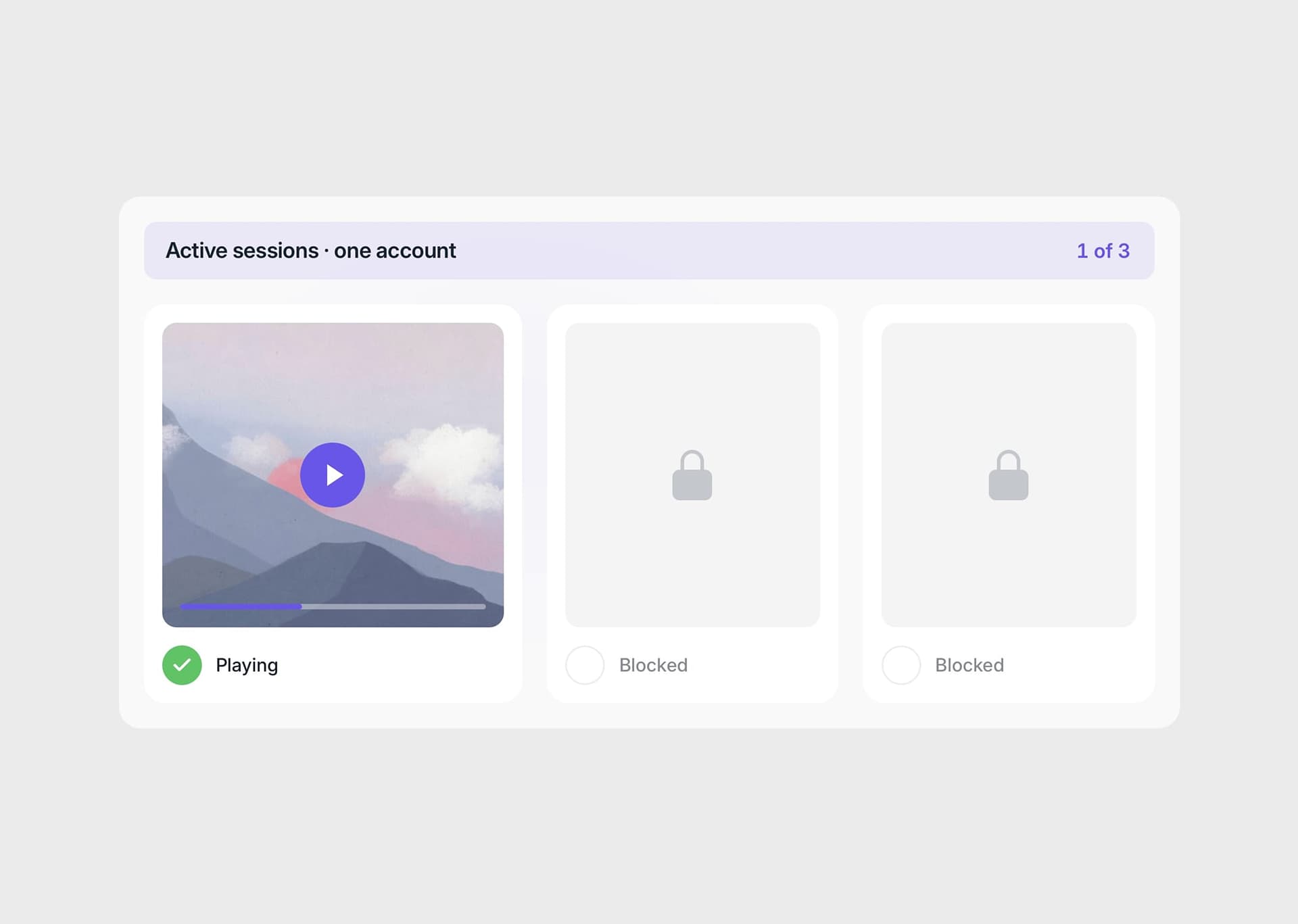
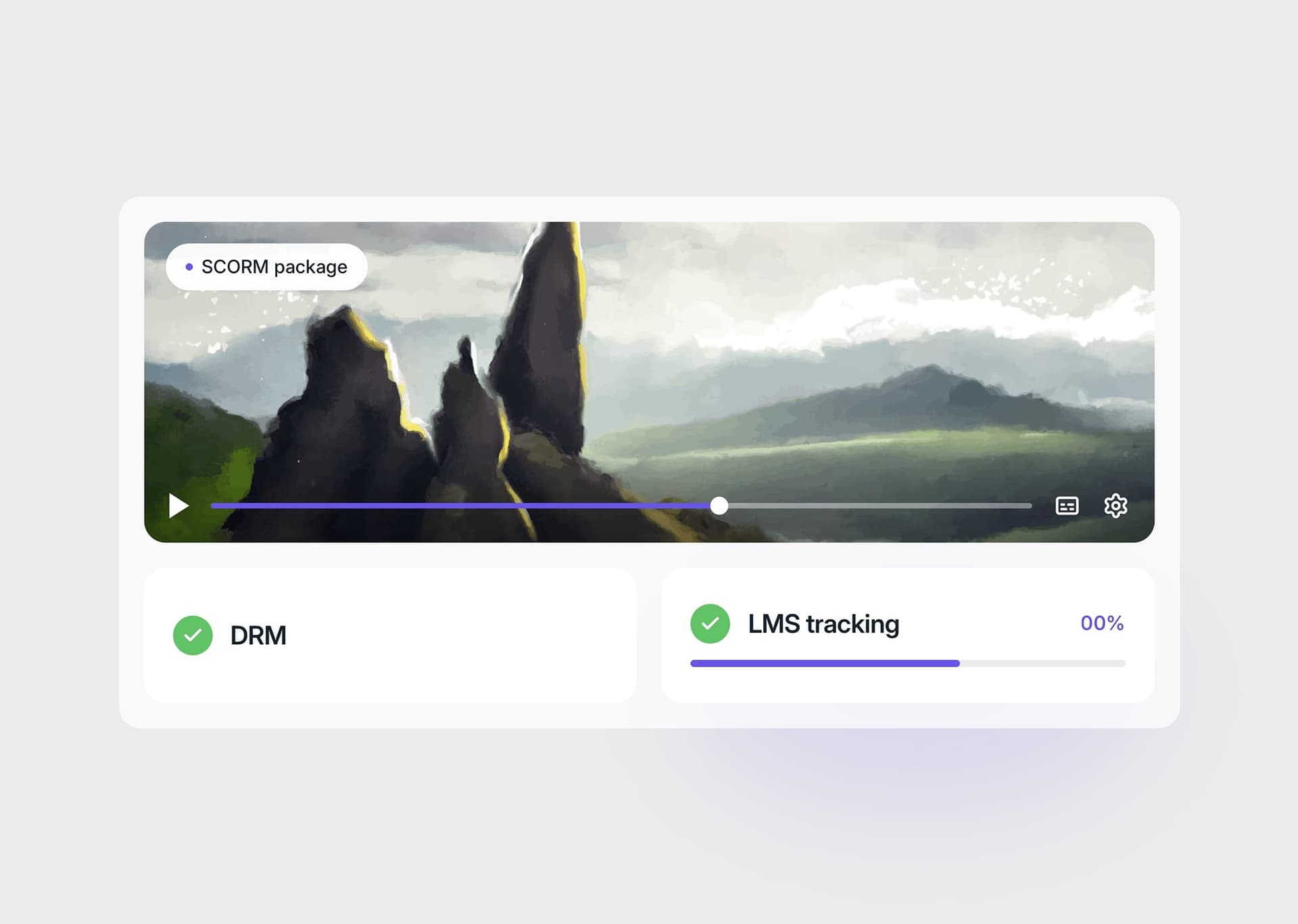
- Video protection and learning management system (LMS) tracking conflict because of one decision: where the video file lives.
- A video inside the Sharable Content Object Reference Model (SCORM) package tracks easily but hands every learner the file; an external video can be protected, but the LMS records nothing until player events reach the SCORM API.
- Domain restrictions check the HTTP Referer header, so allow every domain the course loads from, including the LMS content domain, test tools, and app webviews.
- A static SCORM package can’t keep a signing secret or prove who the learner is, so signed URLs work only when the launch passes through a server you control first, such as an LTI launch or a dispatch setup you run.
- Test in SCORM Cloud and every target LMS, browser, and mobile app, because each changes the referrer, the digital rights management (DRM) path, or both.
To protect videos in SCORM courses without breaking LMS tracking, host the video outside the package, protect it at the video host, and report progress to the LMS through the player's events. The last step is the one teams skip.
Gumlet is an all-in-one video hosting platform that gives course sellers and training teams domain restriction (Creator plan and above), signed URLs (Growth and above), dynamic watermarking (Business and above), Widevine and FairPlay DRM, and a player events API.
The one exception is a package that must play offline, because offline video has to ship inside the ZIP, where no host-side control can reach it.
Rustici Software, which maintains SCORM.com, reports in its 2026 SCORM Cloud Data analysis that 92% of registrations in SCORM Cloud during 2025 were SCORM 1.2 or SCORM 2004 courses.
This article is for instructional designers, eLearning developers, and course sellers who ship SCORM packages to their own LMS or to client LMSs.
Why Do Video Protection and LMS Tracking Conflict in SCORM?
Video protection and LMS tracking conflict because they run in different windows. The SCORM API lives in the LMS window, the video player runs in an iframe on the video host's domain, and the controls that protect the video (domain locks, signed tokens, DRM) decide whether that iframe loads at all.
A SCORM course talks to the LMS through an API adapter, a JavaScript object the LMS exposes in a parent frame, calling LMSSetValue and LMSCommit in SCORM 1.2, or SetValue and Commit in SCORM 2004, per Rustici Software’s SCORM run-time reference. A player on the video host’s domain can’t reach that object, because browsers block scripts from reading another origin’s frames.
The workaround is a bridge. The package page, which can reach the SCORM API, listens to the player through postMessage, the browser's cross-frame messaging channel. The Player.js specification that Gumlet's player.js library implements is built on exactly that channel.
The catch is that every protection layer is one more condition the iframe must pass before a single progress event reaches your SCORM code.
SCORM encrypts and licenses nothing, so secure video in SCORM depends on the video host. Our guide to keeping DRM intact inside SCORM covers the licensing flow in depth, and this article starts where that one stops: keeping the gradebook accurate once the video is protected.
Where Should the Video Live? Four Setups Compared
For most teams, the video should live on an external host, with player events bridged to the SCORM API. That keeps the file off learners’ machines, allows revocation, and records real watch progress instead of a page view.
| Setup | Tracking | Protection | Package size | Update or revoke | Effort |
|---|---|---|---|---|---|
| Video file inside the SCORM package | Easy: the authoring tool reports it | None: unzip the package and the MP4 is there | Grows with every video | Re-export to every LMS; shipped copies can't be revoked | Low |
| External embed, no event bridge | Slide or page completion only | Host controls apply | Small | At the host | Low |
| External embed with player events sent to the SCORM API | Watch percentage, completion threshold, and resume position | Host controls apply | Small | At the host | Medium: JavaScript in the package |
| Pointer or dispatch package (e.g., SCORM Cloud Dispatch) | Handled by the dispatching platform | Content assets sit behind the platform's launch cookie | A few kilobytes | Managed centrally on the dispatching platform | Medium: depends on third-party cookies inside iframes |
The third row is the target for most teams. For dispatch packages, Rustici's support documentation (updated January 2024) notes that SCORM Cloud gates content with a signed ContentAuth launch cookie, so blocked third-party cookies inside an iframe can cause “Authorization Required” errors. The fourth row returns in the signing section, because a dispatch setup you run puts your own server between the learner and the video.
Which Video Protection Methods Work Inside an LMS?
Five protection methods work inside an LMS: domain restriction, signed URLs, DRM, dynamic watermarking, and download disabling. Each stops a different leak.
| Method | What it stops | Tracking or playback risk | Setup note |
|---|---|---|---|
| Domain restriction (referrer allowlist) | Playback on unapproved sites and crawler bots scraping the video | High if any LMS, test, or app domain is missing | List every domain the course loads from. A wildcard such as *.yourlms.com covers subdomains. |
| Signed URLs or expiring tokens | Reuse of a copied playback link after it expires | The URL stops playing at expiry, even mid-video. A static SCORM ZIP can't sign URLs, so the launch must pass through your server (LTI or a dispatch setup you run). | Set expiry to at least the video's length plus realistic pauses. |
| DRM (Widevine and FairPlay) | Extraction and download of the decrypted stream | The iframe needs the encrypted-media permission; Safari plays FairPlay only. |
On a Gumlet iframe embed, DRM is a one-click setting with no license server or player code. |
| Dynamic watermarking | Deters screen recording and traces a leaked copy to a learner | None for tracking; learner identity is a privacy decision. | In a static package, learner details come from the browser, so treat it as a deterrent, not proof. |
| Download and right-click disabling | The visible download option | Low | Doesn't stop developer tools or downloader apps. Our player shows a download button only when Enable Download Button is on in player settings. |
Match the method to the leak: domain restriction for casually shared course links, signed URLs for links posted publicly (when your course launches through a server you control), DRM for files on piracy sites, and a dynamic watermark for circulating screen recordings. None of the five stops someone filming the screen with a second device, so start with domain restriction if you cannot yet name the leak.
How to Keep Tracking Working With Externally Hosted Video
SCORM video tracking keeps working for external video when the package page, not the video host, talks to the LMS: it listens to player events, turns real watch progress into completion and resume values, and commits them deliberately.
Choose a player that exposes events
The player has to report playback start, regular time updates, the end of the video, and errors. Our player.js library provides play, timeupdate (with seconds and duration), seeked, ended, and error events, plus getCurrentTime, getDuration, and setCurrentTime methods that return promises.
Wait for the ready event before calling any method, and test from a server: player.js doesn’t run on a standalone HTML file, so a package opened from your desktop looks broken even when the code is right. Player.js controls our standard iframe embed, so it doesn’t need direct HLS or MP4 URLs. Our online video player is designed to align with WCAG 2.1 Level AA standards and covers key criteria under WCAG 2.2 Level AA.
Map player events to SCORM data
Two decisions turn player events into SCORM data you can trust.
- Completion threshold: Pick a share of the video, such as 90%, and count the seconds that actually played rather than the playhead position. A learner who drags the scrubber to the end has a playhead at 100% and only a few watched seconds; log the seeked event to see who skipped.
- Resume position: Store whole seconds in SCORM’s location field. The element names differ by SCORM version (table below).
Take a 20-minute lesson with a 90% threshold: completion needs 1,080 watched seconds, so a learner who plays the first 18 minutes completes at 18:00, while one who drags the scrubber to the end logs about 1 second with the playhead at 100%.
| Purpose | SCORM 1.2 element | SCORM 2004 element |
|---|---|---|
| Completion | cmi.core.lesson_status |
cmi.completion_status (pass or fail moves to cmi.success_status) |
| Progress as a number | No equivalent | cmi.progress_measure (0 to 1), checked against the LMS-set cmi.completion_threshold |
| Resume position | cmi.core.lesson_location (255 characters) |
cmi.location (1,000 characters) |
| Learner ID | cmi.core.student_id |
cmi.learner_id |
| Exit mode | cmi.core.exit |
cmi.exit |
| Free-form saved state | cmi.suspend_data (4,096 characters) |
cmi.suspend_data (4,000 in 2nd edition, 64,000 in 3rd and 4th) |
All limits above are smallest permitted maximums in Rustici’s SCORM run-time reference, so an LMS may accept more.
Here is a bridge for a custom SCORM 1.2 package, where your code owns every SCORM call. It marks the attempt incomplete on first launch (a SCORM 1.2 LMS may record a course as completed when it exits without a status, as Rustici’s guidance on lesson status explains), saves watched seconds as ranges in suspend data, builds the iframe only after reading the learner ID, and commits on a timer.
// video-bridge.js: runs on the package page. API is the SCORM 1.2 adapter your wrapper found.
const ASSET_ID = 'YOUR_ASSET_ID';
const THRESHOLD = 0.9;          // share of the video that must actually play
const SAVE_EVERY = 15;          // seconds of playback between writes
const COMMIT_EVERY = 45000;     // milliseconds between periodic commits

// 1. Never leave the status unset: some SCORM 1.2 LMSs mark it completed on exit
const status = API.LMSGetValue('cmi.core.lesson_status');
let completed = status === 'completed' || status === 'passed';
if (status === 'not attempted' || status === '') {
  API.LMSSetValue('cmi.core.lesson_status', 'incomplete');
}

// 2. Restore watched seconds, stored as ranges such as "0-899,950-1010"
const watched = new Set();
API.LMSGetValue('cmi.suspend_data').split(',').forEach((range) => {
  const [start, end] = range.split('-').map(Number);
  if (Number.isInteger(start) && Number.isInteger(end)) {
    for (let s = start; s <= end; s++) watched.add(s);
  }
});

function toRanges(set) {
  const secs = [...set].sort((a, b) => a - b);
  const ranges = [];
  let start = secs[0];
  for (let i = 1; i <= secs.length; i++) {
    if (secs[i] !== secs[i - 1] + 1) {
      ranges.push(start + '-' + secs[i - 1]);
      start = secs[i];
    }
  }
  return ranges.join(',');
}

// 3. Build the iframe after reading the learner ID, so the watermark is set before the player loads
const learnerId = API.LMSGetValue('cmi.core.student_id');
const frame = document.createElement('iframe');
frame.title = 'Gumlet video player';
frame.allow = 'encrypted-media; fullscreen; autoplay';
frame.style.cssText = 'border:none; width:100%; aspect-ratio:16/9;';
frame.src = 'https://play.gumlet.io/embed/' + ASSET_ID +
  '?watermark_text=' + encodeURIComponent(learnerId);
document.getElementById('video-slot').appendChild(frame);
const player = new playerjs.Player(frame);

let lastSaved = -1;

player.on('ready', async () => {
  const resumeAt = parseInt(API.LMSGetValue('cmi.core.lesson_location'), 10);
  if (resumeAt > 0) await player.setCurrentTime(resumeAt);    // resume where they stopped
});

player.on('timeupdate', ({ seconds, duration }) => {
  if (!duration) return;
  const position = Math.floor(seconds);
  watched.add(position);
  if (Math.abs(position - lastSaved) >= SAVE_EVERY) {        // throttle writes
    API.LMSSetValue('cmi.core.lesson_location', String(position));
    API.LMSSetValue('cmi.suspend_data', toRanges(watched));
    lastSaved = position;
  }
  if (!completed && watched.size / Math.ceil(duration) >= THRESHOLD) {
    API.LMSSetValue('cmi.core.lesson_status', 'completed');
    API.LMSCommit('');
    completed = true;
  }
});

// 4. Commit on a timer, because the commit on page close can fail
setInterval(() => API.LMSCommit(''), COMMIT_EVERY);
player.on('ended', () => API.LMSCommit(''));
window.addEventListener('pagehide', () => {                 // backup only
  API.LMSSetValue('cmi.suspend_data', toRanges(watched));
  API.LMSSetValue('cmi.core.exit', 'suspend');              // keep the attempt resumable
  API.LMSCommit('');
});
// Your wrapper should also call LMSFinish('') after this commit.
Because watched seconds survive between sessions, a learner who watches 15 of 20 minutes and returns later lands at 15:00 with 900 seconds counted and completes 3 minutes later. A typical viewing pattern produces a handful of ranges, well inside SCORM 1.2’s 4,096-character suspend data limit. Drop the watermark_text parameter if dynamic watermarking (Business plan) isn’t on.
For SCORM 2004, keep the same structure and swap the element names using the table above. The one real change is reporting progress as a number, which lets an LMS that sets cmi.completion_threshold judge completion itself:
// SCORM 2004: inside the throttled block of the timeupdate handler. API is the API_1484_11 adapter.
const progress = Math.min(1, watched.size / Math.ceil(duration));
API.SetValue('cmi.progress_measure', progress.toFixed(2));
// First launch: if cmi.completion_status is 'not attempted' or 'unknown', set it to 'incomplete'.
Wire it into your authoring tool
Uploading the MP4 into an authoring tool puts the file back inside the package, so embed the Gumlet player instead, and decide who owns completion. Storyline, Rise, and Captivate write the status and suspend_data themselves, and if the bridge writes them too, whichever writes last wins. Let the tool own every SCORM field, and have the bridge report to the tool instead.
| Tool | Where the player and bridge go | How the bridge reports | Watch for |
|---|---|---|---|
| Storyline | A web object that loads a local folder whose index.html holds the player and the bridge. |
Sets Storyline variables with parent.GetPlayer().SetVar(); a trigger completes the slide when videoComplete turns true. |
Keep watched ranges and position in Storyline variables, which it saves in its own resume data. Test in published output. |
| Rise | A Code block, which runs your own HTML and JavaScript in an iframe. | Posts { type: 'complete' } to the parent window at the threshold, which releases a continue block. |
Articulate’s 2026 Code Block guide says code blocks use only the resources inside the block, so bundle player.js in an uploaded project and confirm the player loads in published output. If it doesn't, use a Storyline block for that lesson. Watched seconds don't carry across sessions. |
| Captivate | A web object loading a local HTML file with the player and the bridge. | Sets a Captivate variable that an action uses to complete the slide. | How variables reach JavaScript differs by Captivate version, so check yours first. |
| Custom package | The package page itself. | Calls the SCORM API directly, as in the sample above. | The only setup where the bridge should write the status and suspend data. |
Whichever tool you use, confirm it keeps the iframe’s allow attribute, and turn off our Resume Embedded Videos setting, a device-level resume that competes with the SCORM resume.
Commit data sensibly
Write values on a throttle rather than on every timeupdate event, and commit every 30 to 60 seconds, at the threshold, and on ended. Treat the commit on pagehide as a backup only: many LMSs save each commit with a synchronous request, and Chrome blocks those while a page is closing, as web.dev explains.
When to use xAPI or cmi5 instead
SCORM has nowhere to put pauses, rewatches, or segment-level viewing; the Experience API (xAPI) records that in a Learning Record Store, and cmi5 adds LMS launch rules. Add xAPI only when someone will use that detail.
How to Add Protection Without Breaking Playback
Add protection one layer at a time and retest tracking after each, because each fails differently: an allowlist on a missing domain, a signed URL at expiry, DRM on a missing iframe permission or unsupported browser, and a watermark when its parameters never arrive.
Which domains does a SCORM course need on the allowlist?
The allowlist needs whichever page directly holds the video iframe, which in a SCORM course is the LMS content domain, a SCORM Cloud or preview domain, or an app webview. Our referrer check (Creator plan and above) reads the HTTP Referer header, which names that page, and refuses playback for any host not on the list.
Some platforms add a frame of their own. A Patreon embed, for example, loads our player inside Embedly, so the allowlist needs cdn.embedly.com as well as www.patreon.com. SCORM courses nest the same way, so the allowlist needs:
- The LMS's content-serving domain, which can differ from the login domain, plus every subdomain through a wildcard such as *.yourlms.com, which our video protection documentation supports.
- SCORM Cloud and any review or preview tool your team uses before launch.
- LMS mobile apps, added by bundle ID. Our docs also cover sending the x-requested-with header when an app leaves it out, but that fix applies only to an app you build. A course seller shipping into a client’s LMS app can’t change its headers, so test that app early and agree on a fallback, such as the LMS’s mobile web view, with the client.
With no referrer policy set, browsers default to strict-origin-when-cross-origin, which sends the page's origin between HTTPS pages and nothing from HTTPS to HTTP, according to MDN's Referrer-Policy reference. An LMS page or iframe set to no-referrer sends nothing, and the video is blocked even with every domain listed.
If the allowlist is right and the iframe still will not load, check the Content Security Policy the LMS serves with the package page: its frame-src directive must list the video host’s domain.
The error text tells you which host refused. "Because of its privacy settings, this video cannot be played here" is Vimeo's domain-level privacy error, which Vimeo’s help center ties to a mismatch between the address bar and the domain sent to the player. Our online video player instead reports that the domain is not authorized and shows a request ID.
Allowlist changes can take 10 to 15 minutes to apply, so a test run in the first minute after saving produces a false failure.
A referrer check controls where an embed plays but encrypts nothing, so pair it with signed URLs or DRM when the content is worth stealing on purpose.
Can a SCORM package use signed URLs?
Only when the launch passes through a server you control first. A signed URL carries an expiry time and a signature made with a secret key, and on the Growth plan and above we issue one sign secret per workspace. A static SCORM ZIP can’t hide that secret, and it can’t prove to any server who the learner is: everything the package reads, including the learner ID from the SCORM API, comes from the browser and can be edited.
A signing endpoint called from the package can therefore check the requesting domain at most, which domain restriction already does, and anyone who finds the endpoint can request fresh URLs.
Signing works when a server sees the launch before the learner reaches the video:
- An LTI 1.3 launch. The LMS sends your server a signed message that names the learner, as defined in the LTI 1.3 specification. Your server then signs the embed URL, and the watermark text inside it, for that learner. The course ships as an LTI tool instead of a SCORM ZIP, so confirm each client LMS supports LTI 1.3.
- A dispatch setup you run (the fourth row of the setup table). The client’s LMS holds a small launcher while the course runs on a platform you control, which can sign short-lived URLs for each launch and cut off a client centrally. With a hosted service such as SCORM Cloud Dispatch, the dispatching server isn’t yours, so signing our URLs still needs your own server in the launch path. The learner ID still originates in the client’s LMS, so treat it as reported, not verified.
- An LMS you run yourself. When the course lives in your own LMS rather than a ZIP, the LMS can sign for logged-in learners. Academy LMS’s Gumlet integration works this way for lesson videos, with a token expiry you set in seconds (the default is 3,600). It covers videos in native Academy LMS lessons, not videos inside a SCORM package.
If none of these fits, a static package relies on domain restriction. Keep its videos in a workspace with signed URLs turned off: once signing is on, our embed URL and embed code need a valid token, so an unsigned embed baked into a ZIP stops playing.
Where you do sign, turn off MP4 generation in that workspace, because MP4 outputs play without a token. Set expiry to at least the video’s duration plus realistic pauses, and fetch a fresh URL whenever a returning learner resumes.
Test DRM inside nested iframes and mobile apps
Widevine and FairPlay DRM is free for your first 5 videos on any Gumlet plan, including Free. DRM for more videos is a $99/month add-on on paid plans. On a Gumlet iframe embed, you turn DRM on in a workspace’s Processing Settings, with no license server or player code, and our DRM setup guide shows the same for Android and iOS WebViews. What breaks DRM inside an LMS is the environment around the player:
- Iframe permission. The iframe needs allow="encrypted-media", which our embed code includes, as our Tutor LMS embed guide shows. Check that your LMS editor and authoring tool keep it too, and that every iframe between the LMS page and the player passes it down.
- Browser. Per our DRM compatibility table, Safari plays FairPlay (Safari 10 or later on macOS, 11.2 or later on iOS), while Chrome 68, Firefox 60, and Chromium Edge 88 or later play Widevine. Legacy Edge and Internet Explorer 11 are restricted.
- Older uploads. DRM is applied during processing, so videos uploaded before DRM was turned on need reprocessing.
On Android and iOS devices, our DRM helps prevent screen recording. Elsewhere, as our DRM limitations guide explains, DRM can’t fully stop a screen recorder, which is where watermarking comes in.
Add watermarking if leaks are the real risk
A dynamic watermark deters screen recording and traces a leaked copy back to a learner; it doesn’t stop the recording itself. On Gumlet, you turn on dynamic watermarking in Player Settings under Advanced Settings, and the text travels in the embed URL as a watermark_text parameter. Apple doesn’t allow overlays such as watermarks during native iOS playback, so check what iPhone and iPad learners see.
In a SCORM package, the bridge reads cmi.core.student_id or cmi.learner_id and adds it to the iframe source before the player loads, the same pattern our Moodle embed guide shows with the FilterCodes plugin. The bridge sample does this by building the iframe in script.
- Tampering: An unsigned watermark parameter can be edited in the browser’s developer tools. Signing the embed URL locks the text against later edits, but a signing server signs whatever learner ID it is given, including a fake one. Only a launch that proves identity, such as LTI 1.3, makes the watermark reliable evidence; in a static package, treat it as a deterrent.
- Privacy: The learner ID in the watermark reaches us with every view, viewer IP addresses aren’t masked, and we can’t currently delete an individual viewer’s data. Prefer an opaque LMS learner ID over an email address, turn off our viewer analytics with disable_insights=true in the embed if you don’t need them, and confirm the data flow with whoever owns privacy for your LMS or your client’s.
How to Secure LMS and SCORM Videos With Gumlet (a Layered Setup)
Gumlet, an all-in-one video hosting platform, supports each layer of this video protection approach, and each layer sits on a specific plan: domain restriction from Creator, signed URLs from Growth, dynamic watermarking on Business, and DRM free for your first 5 videos, then a $99/month add-on on paid plans. The table shows where each layer helps and where it can interfere.
| Protection layer | What it does inside an LMS | Effect on tracking or learner experience | Gumlet plan |
|---|---|---|---|
| Domain restriction | Video plays only on approved LMS domains and apps. | None for tracking if every LMS domain is listed; casting to TVs is turned off. | Creator ($6/month, billed annually) and above |
| Password protection | Viewer enters a password before playback. | Adds friction for learners already logged into the LMS; better for previews shared outside it. | All plans, including Free Forever |
| Geo-blocking | Allows or blocks playback by country. | None for allowed regions. | All plans |
| Signed URLs | Playback URLs expire and can't be reused elsewhere. | Needs a launch through your server (LTI, a dispatch setup you run, or your own LMS); not usable in a static SCORM ZIP. | Growth ($19/month, billed annually) and above |
| Dynamic watermarking | Overlays learner details to deter screen recording and trace leaks. | None for tracking; casting to TVs is turned off for watermarked videos. | Business ($99/month, billed annually) and Enterprise |
| DRM (Widevine and FairPlay) | Encrypts the stream so files can't be extracted. | Test in iframes, on Safari, and in LMS mobile apps; casting to TVs is turned off for DRM videos. | Free for your first 5 videos on any plan, including Free; then a $99/month add-on on paid plans, with 100,000 DRM views a month included and $1 per 1,000 after; included in Enterprise |
As of November 2026, a SCORM course sold to client LMSs needs domain restriction as its floor, and the workspace count decides the plan. Allowlists apply per workspace, so each client that needs its own allowlist needs its own workspace: Creator and Growth include 2, and Business includes 10.
Two clients fit on Creator. Three to ten need Business, or a shared allowlist, which is safe only when every client licenses the same videos, because a shared allowlist lets Client A’s LMS play anything Client B can.
Add signed URLs only when the course launches through LTI or a dispatch package, and add the DRM add-on or Business-plan watermarking when extraction or recording is the proven risk.
The Free Forever plan can test the embed but cannot enforce an allowlist. The full comparison is on our pricing page.
Step 1: Upload and embed the video in your LMS or SCORM package
- Use the iframe embed code in an LMS lesson page or a SCORM web object, and keep its allow attribute intact.
- Add every LMS domain, test harness, and app bundle ID to the workspace's allowed referrers in the workspace’s Video Protection settings.
Step 2: Stack protection layers based on risk
- Start with domain restriction.
- Add signed URLs if links leak and the course launches through your server (LTI, a dispatch setup you run, or your own LMS); a static SCORM ZIP can’t sign.
- Add DRM if file extraction is the risk, and turn it on before uploading.
- Add a dynamic watermark if screen recording is the risk.
Step 3: Keep completion tracking intact with player.js
Load player.js on the package page next to an empty container, then run the bridge from the tracking section. The bridge builds the iframe, adds the watermark, and writes the completion threshold, watched ranges, and resume position to the SCORM API.
<div id="video-slot"></div>
<script src="https://cdn.jsdelivr.net/npm/@gumlet/player.js@3.0.11/dist/main.global.js"></script>
<script src="video-bridge.js"></script> <!-- the bridge from the tracking section, which builds the iframe -->
The sample pins player.js 3.0.11, the latest release as of November 2026, so a later release cannot change tracking in a shipped package; our docs use the @3.0 range.
Step 4: Test the setup in SCORM Cloud and your LMS
Run every row of the test matrix in the next section before the package reaches a client LMS, starting with SCORM Cloud.
Recommended layer stacks by use case
| Use case | Suggested layers |
|---|---|
| Internal employee training | Domain restriction on the LMS domains; add geo-blocking if the content is licensed for specific countries. |
| Courses sold to client LMSs | One workspace per client for domain restriction (Creator covers 2, Business 10); signed URLs only through an LTI launch or a dispatch setup you run; dynamic watermark with an opaque learner ID as a deterrent. |
| High-value certification or exam prep | DRM and a dynamic watermark, plus signed URLs when the course launches through LTI or your own server. |
Password protection and geo-blocking are on the Free Forever plan, so you can test the Gumlet embed inside SCORM Cloud before paying, though the referrer allowlist needs the Creator plan.
How to Test Before You Ship
Test in SCORM Cloud first, then in every target LMS, browser, and mobile app, and check the same four things each time. The video plays, completion records only after the threshold, resume returns to the right second, and the protection still refuses playback outside the course.
| Environment | Playback | Completion recorded | Resume works | Protection holds |
|---|---|---|---|---|
| SCORM Cloud | Video starts with the allowlist on. | Status changes only after the threshold; skipping to the end doesn't complete. | Relaunch returns to the saved second. | The embed URL refuses to play when opened in a new tab. |
| Each target LMS | Plays from the LMS content domain as well as the login domain. | The gradebook shows the same status SCORM Cloud did. | Works after logging out and back in. | Playback fails on a domain you didn't list. |
| Chrome, Safari, Firefox | DRM videos play: Widevine in Chrome and Firefox, FairPlay in Safari. | Same as above. | Same as above. | DRM video won't play outside an authorized player. |
| LMS mobile app | Plays inside the app's webview with the bundle ID allowed. | Completion syncs back to the LMS. | Resume works across phone and desktop. | The video refuses playback in a mobile browser outside the app. |
Launch from SCORM Cloud or the LMS rather than a local file, test with a learner account, and relaunch one test the next day to exercise resume and, if you sign, URL expiry.
What Tools Do You Need to Protect and Track SCORM Video?
Protecting and tracking SCORM video takes four kinds of tools: an authoring tool, a video host with a player events API and access controls, a SCORM test harness, and, only when you must, a video-to-SCORM converter. Choose by capability, because any host whose player exposes playback events can run the bridge in this article.
| Capability | Example tools | Watch for |
|---|---|---|
| Authoring tool | Storyline, Rise, Captivate | Whether you can add your own HTML and JavaScript next to the embed, and which SCORM fields the tool already writes. |
| Video host with an events API and access controls | Gumlet, VdoCipher, Kinescope, Gcore | Which plan unlocks signed URLs, DRM, and watermarking, and whether protection is set per video or per workspace. |
| SCORM test harness | SCORM Cloud | Its own content domain on your allowlist, and third-party cookie settings when launching inside iframes. |
| Video-to-SCORM converters | Any tool that wraps an MP4 into a SCORM ZIP | The video usually ends up inside the package, which is the setup this guide moves away from. |
Common Mistakes That Break SCORM Video Protection or Tracking
Every mistake below leaves either the protection or the tracking broken, and each is cheap to check before a package ships. Use the list as a pre-launch audit for a client LMS, and treat any item you cannot rule out as a failure until a test run says otherwise.
- Shipping MP4s inside packages sold to clients.
- Allowing only the main LMS domain and forgetting the content-serving domain, SCORM Cloud, and app webviews.
- Putting a signing secret in the JavaScript package.
- Marking a video complete on start, or when the playhead reaches the end instead of when enough seconds have played.
- Turning DRM on and assuming videos uploaded before that are protected.
- Treating "unlisted" or "private" video settings as protection, when unlisted videos are playable by anyone who has the link.
Frequently Asked Questions
1. Why does my SCORM course mark a video complete when the learner skipped to the end?
The completion logic reads the playhead position or the ended event, and both fire when a learner drags the scrubber to the end. Count the whole seconds that played instead, and complete only when that count passes your threshold: 1,080 seconds for a 90% rule on a 20-minute lesson.
2. Why does my embedded video say it can't play due to privacy settings in the LMS?
That message is Vimeo’s domain-level privacy error: the domain sent to the player is not on the video’s allowed list. In an LMS, the iframe can sit on a content domain, SCORM Cloud, or a review site, so allow every domain the course loads from, then retest after the setting propagates.
3. Does DRM work inside SCORM courses and LMS mobile apps?
SCORM carries no DRM, but DRM-protected video plays inside a course when the player loads in an iframe that allows encrypted media. On Gumlet, iframe embeds and Android and iOS WebViews need no license server or player code, plus the app’s bundle ID on the allowlist. Test each LMS app, because our docs list WebView support, not named apps.
4. How do I stop clients from keeping my videos after their license ends?
Host the videos externally and limit playback with an allowlist naming each client’s LMS domains; when a license ends, remove those domains and the shipped package stops playing. We apply allowlists per workspace, so separate clients need separate workspaces: 2 on Creator and Growth, 10 on Business. MP4s inside a package can’t be revoked.
5. Does SCORM 1.2 or 2004 handle video tracking better?
SCORM 2004 handles it better, if every target LMS supports it. It adds cmi.progress_measure, a 0 to 1 value the LMS compares with cmi.completion_threshold, and its 3rd and 4th editions allow at least 64,000 characters of suspend data against 4,096 in SCORM 1.2. Fall back to 1.2 when a client’s LMS doesn’t accept 2004.
Decide Where the Video Lives Before Anything Else
To protect videos in SCORM courses without losing the gradebook, decide where the video lives before choosing any protection. Keep the file at the host, protect it with the layer that matches your leak, bridge player events to the SCORM API, and test in every environment.
Once the bridge is in place, changing protection is a settings change, not a re-export to every client. To try it, embed one video from a Gumlet Free Forever account in a test package and run it through SCORM Cloud.