If you design in Framer, adding video can turn a static layout into a living interface. The trick is choosing the right method for your goal, performance budget, and SEO. This guide walks you through the most reliable ways to embed a Framer video, compares options, and shows a fast, repeatable workflow with Gumlet.
Understanding How Video Embeds Work in Framer
Framer supports video in two broad ways: native components and custom embeds. Native tools are quick and visual. Custom options (such as an iframe-embedded video) are flexible and let you bring any external player into your project.
iFrame vs Framer components
- Framer components: The built-in Video component and third-party Framer plugins are configurable from the right-side properties panel. They are ideal for designers who want speed, responsive control, and fewer manual edits to code.
- iFrame embed video: The Framer embed block allows you to paste raw Framer embed code from platforms like YouTube or Vimeo. It is universal and great when a platform provides a ready-to-paste snippet, but it requires extra care to ensure responsiveness, accessibility, and performance.
Supported video sources
- YouTube: Simple to paste, solid CDN, easy controls, large ecosystem.
- Vimeo: Fine playback controls, privacy tools, curated look.
- Gumlet: Performance-first delivery, custom branding, DRM-friendly, analytics, and SEO features that help Framer videos rank better and load quickly.
- Self-hosted MP4s: Maximum control, but you must manage encoding, CORS, bitrate ladders, and storage costs.
Methods to Embed Video in Framer
When adding Framer videos to your project, there are three main methods—each designed for different needs and levels of control. Whether you want to quickly drag in a native component, paste an iframe embed video from YouTube, or use optimized Framer plugins, the platform gives you plenty of flexibility. Let’s go through each approach step by step and determine which one best fits your workflow.
Using the Native Video Component
The easiest way to add a Framer embed video is by using the built-in Video component. It’s fast, visual, and perfect for smaller MP4 or WebM files that you manage yourself.
Where to find it inside Framer:
Press I on your keyboard to open the Insert Menu. In the search bar, type “Video”. You’ll see Framer’s native Video component appear—drag and drop it directly onto your canvas.
How to add it to your canvas:
Once placed, you can resize or align it using the layout grid or stack controls. Add your video file by selecting the component and pasting a hosted URL (for example, an S3 or Gumlet-hosted MP4). You can also upload a small file from your computer, but it is better suited to lightweight clips rather than long-form content.
Accepted file types and formats:
Framer’s native video block supports MP4 and WebM, which are the most browser-compatible formats. For best playback performance, ensure your MP4s use H.264 encoding and are under 20MB if possible.
Configuration options:
- Toggle autoplay, loop, and controls directly in the properties panel.
- Add a poster image to improve LCP (Largest Contentful Paint) and provide a preview before the video loads.
- Set muted when enabling autoplay to comply with browser autoplay policies.
Known issues with native embedding:
- Autoplay on mobile often fails unless the video is muted.
- Large MP4s can reduce page speed and negatively affect Core Web Vitals.
- CORS headers must be properly configured when hosting the file externally, or the video may fail to load.
- Limited analytics and SEO — native embeds don’t offer structured data or engagement tracking like specialized players.
This method is great for simple, lightweight Framer embeds, but for marketing pages, CMS-driven content, or video-heavy designs, a more powerful approach is recommended.
Embedding with an iFrame or Custom Code
If you prefer to embed from YouTube, Vimeo, or another player, you can use a classic iframe embed video. This approach gives you access to built-in platform controls, analytics, and sharing features without hosting files yourself.
How to grab the embed code:
- Go to your video on YouTube or Vimeo.
- Click Share → Embed and copy the HTML snippet provided.
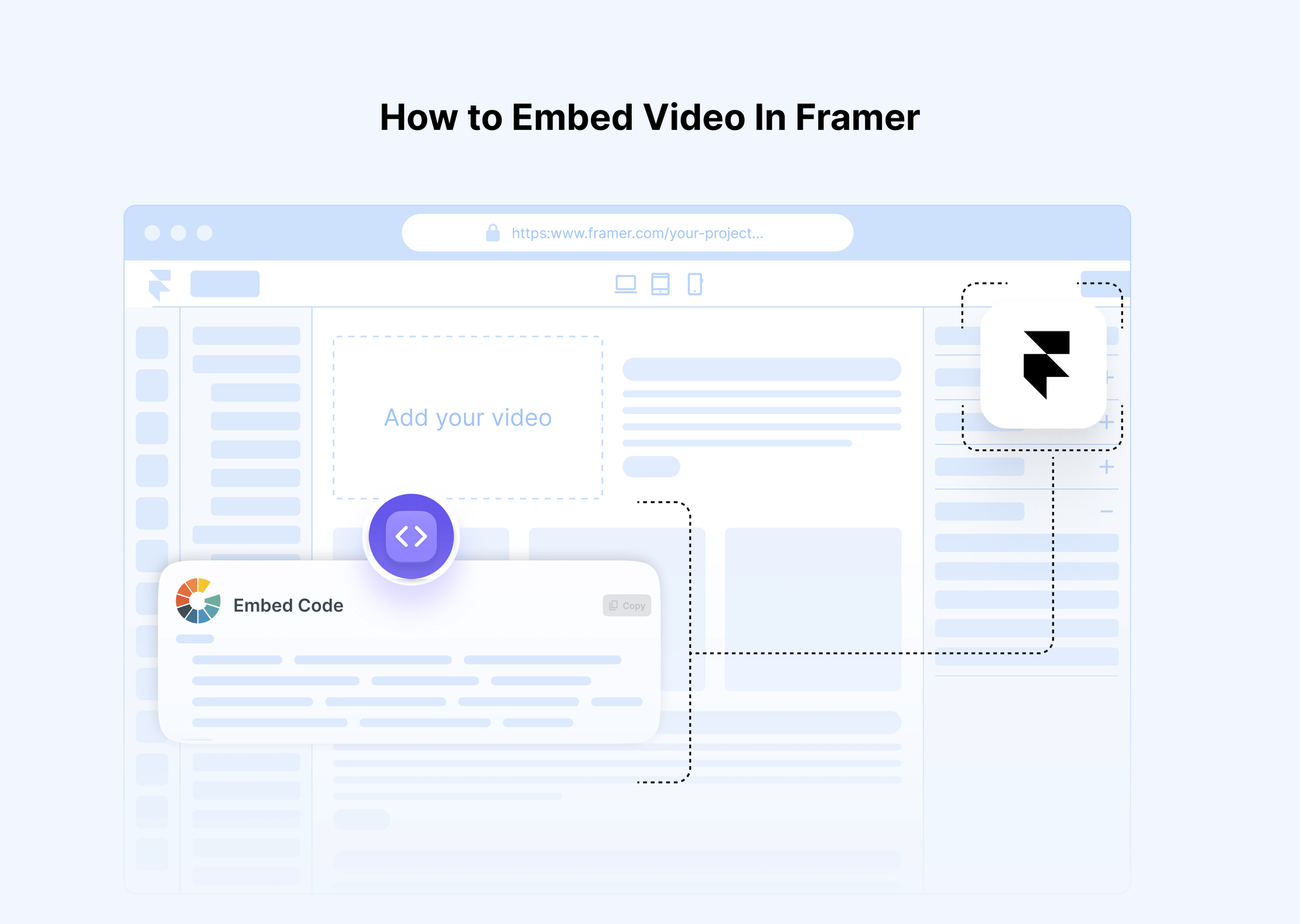
- In Framer, open the Insert Menu (I) and choose the Embed block.
- Paste the copied Framer embed code directly into the Embed field.
Your video will instantly appear in the design preview. You can then resize or position the embed block anywhere within your layout.
Responsive and accessibility best practices:
- Wrap the embed in a 16:9 Aspect Ratio container to ensure the video scales properly across devices.
- Always add a title attribute to the iframe for screen readers.
- Include captions or a link to a transcript to ensure accessibility compliance.
- Avoid autoplay with sound—it can disrupt user experience and increase bounce rates.
- Lazy-load the video to improve performance, ensuring the player only initializes when it comes into view.
Common issues with iFrames:
- Some platforms add additional UI (such as related videos or branding) that you can’t fully customize.
- iFrames create a separate browsing context, which can cause layout shifts or slightly higher memory usage.
- If the Framer embed code changes upstream (for example, YouTube updates parameters), you may need to replace it manually.
- Analytics from iFrame players are usually siloed—you can’t easily connect them to your Framer analytics dashboard.
This method is reliable for simple integrations and supports nearly any external platform, but it offers limited styling control and can slow down page performance when multiple players load simultaneously.
Using Third-Party Plugins (Framer Plugins)
For teams that want full performance, branding control, and scalability, Framer plugins are the best approach. Plugins bridge the gap between simple embeds and enterprise-grade video management systems, giving you native configuration options right inside Framer’s interface.
Overview of the Framer Plugins marketplace: Framer’s marketplace features hundreds of extensions that extend what you can do natively—covering video, SEO, forms, animation, and analytics. You can access it by pressing I → Marketplace, or by typing “plugins” into the search bar. Most plugins are free or freemium and integrate directly into your canvas.
Best plugin options for video:
- YouTube Player Plugin: Simplifies YouTube integration, gives more control over playback, and improves responsiveness compared to raw iFrames.
- Gumlet Embed Plugin: The most advanced solution for production-grade websites. It offers fast, SEO-friendly, and customizable playback while keeping your pages lightweight.
Why Gumlet Embed is the best option:
Performance: Videos are served through a global CDN with adaptive bitrate streaming.
- Branding: Full control over watermark, colors, and player UI for consistent brand identity.
- SEO: Gumlet automatically injects metadata that helps your videos rank better in search and improves visibility in Google’s AI Overviews.
- Analytics: Built-in video engagement data lets you measure how users interact with your content.
- Security: Token-based playback and domain restrictions protect against unauthorized sharing or hotlinking.
- Ease of use: It’s drag-and-drop friendly—simply paste your Gumlet URL, configure properties in Framer, and you’re done.
In short, Framer plugins like Gumlet give you everything you need—speed, design flexibility, and enterprise-level features—all without the maintenance headaches of self-hosted or iFrame-based videos.
Summary: There’s no one-size-fits-all solution for a Framer embed video, but the choice depends on your goals:
- For simplicity, use the native Video component.
- For universal compatibility, use an iframe-embedded video.
- For professional sites that prioritize SEO, speed, and analytics, choose Framer plugins such as Gumlet Embed.
This layered approach ensures that no matter your project size or audience, you always have a clean, responsive, and optimized way to embed video in Framer.
How do I embed a video in Framer using Gumlet?
When it comes to embedding a video in Framer, no option matches the balance of speed, SEO performance, and branding flexibility that Gumlet offers. The Gumlet video player is designed for modern, responsive websites and integrates seamlessly through Framer plugins—making it the ideal choice for designers and marketers who want production-grade Framer videos without writing complex code.
Why Gumlet Is the Best Option
SEO Benefits: Unlike generic video players or raw MP4 embeds, Gumlet automatically generates structured data (VideoObject schema), descriptive metadata, and clean, optimized markup for search. This helps your videos rank in search results and improves their visibility in Google’s AI Overviews. In other words, when you embed a video in Framer using Gumlet, you’re not just adding media—you’re enhancing discoverability.
Customization and Branding: With Gumlet, you can fully control your video player’s appearance. Adjust player colors, buttons, watermarks, and thumbnail designs to match your brand guidelines. This makes your Framer embed video feel native to your site rather than a generic player embedded via an iframe.
Styling and Responsiveness: The Gumlet Embed plugin gives you precise control over layout and sizing inside Framer. You can adjust aspect ratios, padding, and grid behavior so that your framer embed works flawlessly across desktop, tablet, and mobile breakpoints. Unlike raw HTML embeds, Gumlet respects your design system’s responsive rules.
Performance Advantages: Gumlet’s adaptive bitrate streaming automatically adjusts video quality to suit the viewer’s internet speed. Combined with global CDN delivery, this ensures fast, buffer-free playback while keeping overall page weight low. Features like lazy loading and preloading control further optimize how to embed a video in Framer for Core Web Vitals.
Security and Analytics: Enterprises often need more than basic playback. Gumlet supports tokenized URLs, domain restrictions, and viewer-level analytics. You can monitor engagement metrics such as play rate, watch time, and completion rates—all inside a secure, compliant environment. For professional websites and course platforms, this makes Gumlet a true video content security and performance solution.
Step-by-Step: How to Embed Video in Framer Using Gumlet
Embedding Gumlet videos in Framer takes just a few minutes. Follow these steps to make your next framer embed video smooth, SEO-friendly, and visually aligned with your brand.
Step 1: Prepare Your Video Asset
- Log in to your Gumlet account and navigate to your Video Library.
- Upload your video file. Once processed, Gumlet automatically generates multiple renditions for adaptive streaming.
- Set a thumbnail, poster image, and captions for accessibility and SEO.
- Copy the Video ID from the asset once it’s ready. This ID will be used to connect Framer with your Gumlet video.
Step 2: Install the Gumlet Plugin in Framer
- Open your Framer project.
- Press I to open the Insert Panel, then search for Gumlet Video under Framer plugins.
- Alternatively, visit the Framer Marketplace and search for the Gumlet Embed plugin.
- Click Open Plugin to install it in your workspace.
Step 3: Add the Gumlet Embed to Your Canvas
- Once installed, drag the Gumlet Video block onto your Framer canvas.
- In the properties sidebar, paste the Video ID you copied from your Gumlet library.
- The video will load instantly, pulling from Gumlet’s CDN in real time.
Step 4: Configure Playback and Design Settings
- From the sidebar, customize autoplay, loop, mute, controls, and captions.
- Adjust the aspect ratio (16:9 or custom) for responsive behavior.
- Style the player with your brand colors, and enable watermarking or overlays as needed.
- Optionally, set lazy load behavior to improve page performance on initial load.
Step 5: Make It Responsive
- Use an Aspect Ratio wrapper and set the width to 100%.
- Ensure the player aligns with your Framer layout grid and scales smoothly across breakpoints.
- Test on different screen sizes to confirm the video adapts properly.
Step 6: Publish and Test
- Click Publish in Framer to deploy your page.
- Test the Framer embed video on desktop, mobile, and slow-network conditions.
- Check analytics in your Gumlet dashboard to monitor engagement and playback quality.
- If needed, fine-tune resolution ladders, captions, or poster images for better UX.
Why This Method Works Best
When you use Gumlet, you’re not simply embedding a video—you’re building a high-performance media experience. Unlike raw iframe embed videos that lack SEO structure or self-hosted files that slow down your pages, Gumlet gives you:
- Optimized streaming through adaptive bitrate.
- Secure delivery via tokenized links.
- Full customization using Framer’s native plugin interface.
- Automatic metadata and schema markup for SEO.
- Consistent branding with your site’s color palette and typography.
The result is a professional, fast, and discoverable player that fits perfectly into the Framer embed ecosystem.
Ready to embed Gumlet videos in Framer? Follow the official guide here: Embed Videos on Framer – Gumlet Documentation
Best Practices and Pro Tips
Embedding videos in Framer is about making them perform. Optimized Framer embed videos can load faster, improve accessibility, and even enhance SEO visibility. Below are some key tips and best practices to help you get the most out of every Framer embed.
1. Add titles and alt text: Give every Framer video a clear title and alt text for accessibility and search context.
2. Use VideoObject schema: Add structured markup so search engines recognize and rank your Framer embed video.
3. Enable lazy loading: Load videos only when visible to improve LCP and page speed.
4. Optimize thumbnails and transcripts: Use light thumbnails and transcripts to boost AI Overviews and discoverability.
5. Keep file size under 20 MB: Smaller videos load faster and reduce buffering on your framer embed.
6. Add overlay thumbnails: Show a static preview until users click play to delay player load.
7. Use Framer animations: Add subtle hover or fade-in effects for an interactive look.
8. Include captions or transcripts: Improve accessibility and watch time for all Framer videos.
9. Host on fast CDNs: Use Gumlet or YouTube for reliable, global delivery and smooth playback.
Conclusion
You can embed video in Framer in several ways, but the best results come from choosing a method that matches your goals. Native components are quick, framer embed blocks are flexible, and framer plugins like Gumlet give you the strongest combination of speed, branding, SEO, and analytics. If you need a dependable workflow you can roll out across pages and CMS collections, Gumlet’s Framer integration is the shortest path to a clean, fast, and maintainable framer embed video.
FAQ
How do I add a video to Framer CMS?
Create a CMS field for the video URL or ID, connect it to the Video, Embed, or Gumlet component, and bind the property so each collection item renders the right video.
Can I embed YouTube videos in Framer?
Yes. Use the Embed block with the YouTube iframe or use a YouTube-specific plugin for better defaults and responsive behavior when you Framer embed external players.
What video formats does Framer support?
The native Video component supports MP4 and WebM for simple framer embeds. For more formats or adaptive streaming, use a specialized provider or plugin.
What should I do if the video isn't loading in Framer?
Check the URL, CORS headers, and file hosting. Ensure autoplay policies are respected, and confirm that the container’s layout has a defined size and aspect ratio.
What should I do if the iframe is not responsive?
Wrap the framer embed code in a container with a fixed aspect ratio, set the width to 100%, and allow the height to auto-calculate. Test on multiple breakpoints.
What should I do if the CMS video isn't showing?
Verify that the collection field is connected to the right property, confirm the field value is a valid URL or ID, and publish again to update the data binding.