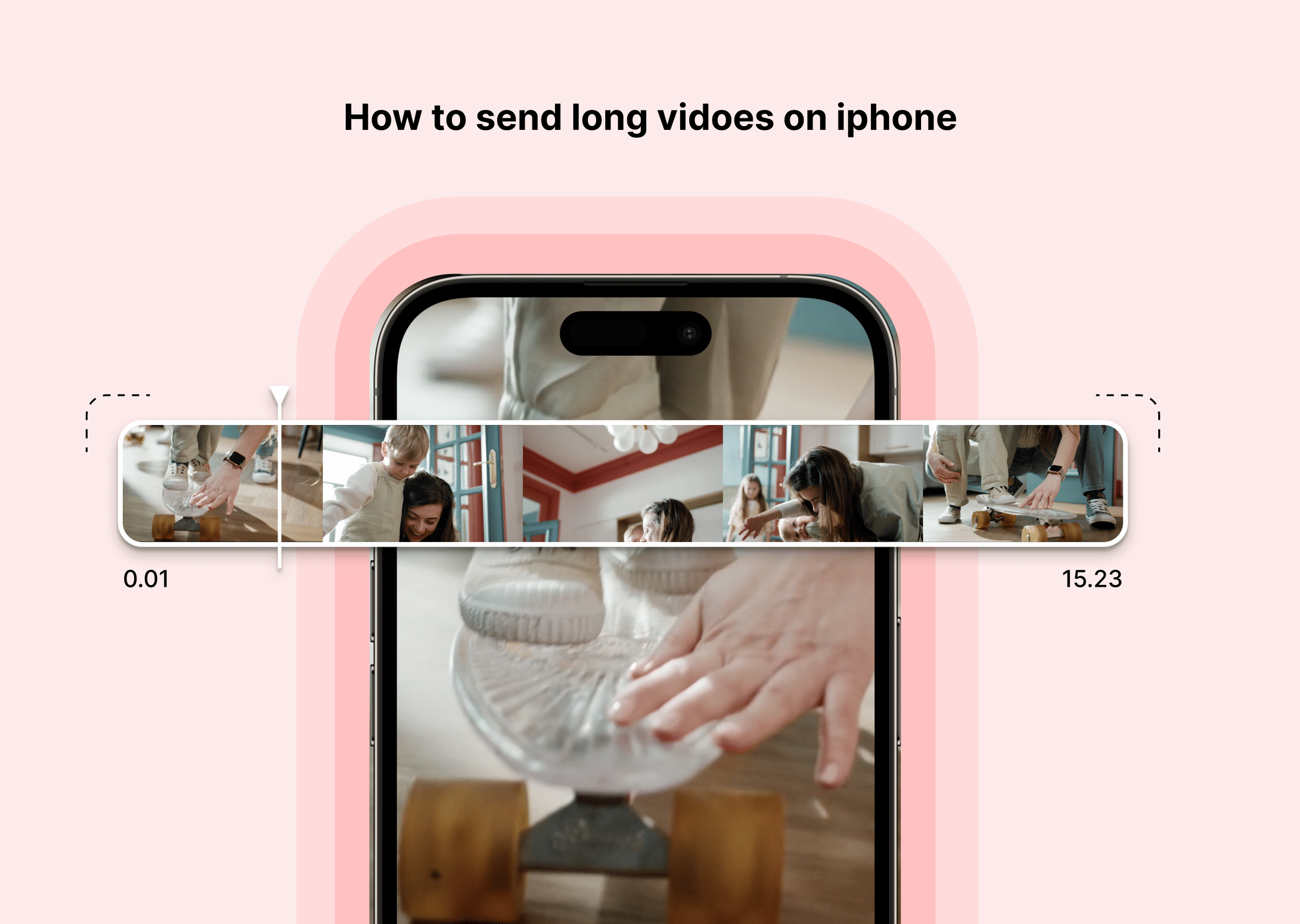
iPhones record stunning high-definition videos, but these files can quickly balloon to hundreds of megabytes—or even several gigabytes. Sending long videos over iMessage or email often leads to compression, quality loss, or error messages. Fortunately, there are multiple reliable ways to send long videos, no matter who you’re sharing them with or what platform they use.
Below, you’ll learn step-by-step methods, when to use each, and which tools can help you send long videos on iPhone without compression.
How to Send Long Videos on iPhone
Sending large video files from your iPhone doesn’t have to be a headache. Whether you’re sharing family recordings, business content, or creative projects, you have several reliable options to transfer videos without losing quality or exceeding size limits. Below, you’ll find detailed instructions for each method, along with explanations about when to use them and what makes them effective.
Method 1: Use iCloud Link (Apple’s Built-In Option)
Step-by-Step Guide:
- Begin by opening the Photos app on your iPhone and locating the video you want to share.
- Tap the Share icon, which appears as a box with an upward-pointing arrow.
- In the menu that appears, look for and tap the option called “Copy iCloud Link.”
- Your iPhone will start uploading the video to your iCloud storage. This process may take a few minutes, depending on the file size and your internet speed.
- Once the upload completes, your iPhone creates a shareable link automatically copied to your clipboard.
- You can now paste this link into any app—such as Messages, Mail, or social media—to share the video.
Why Use This Method:
This is one of the simplest and most reliable ways to send long videos on iPhone without compression. The video remains in its original resolution, and the recipient only needs the link to download or watch it. It also requires no extra apps or services because iCloud is already built into iOS. Keep in mind that the link remains active for 30 days before it expires.
Method 2: Use AirDrop for Nearby Apple Devices
Step-by-Step Guide:
- Make sure both your iPhone and the recipient’s Apple device have AirDrop enabled. You can adjust this by opening Settings, tapping General, and selecting AirDrop. Choose either “Contacts Only” or “Everyone” to make your device discoverable.
- On your iPhone, open the Photos app and select the video you wish to send.
- Tap the Share icon and look for the AirDrop section at the top of the sharing options.
- Tap the name of the recipient’s device when it appears.
- The recipient will get a prompt to accept the file transfer. Once they confirm, the video will begin transferring wirelessly.
Why Use This Method:
AirDrop is the fastest and most seamless way to send long videos between Apple devices, especially when you’re physically close to the recipient. It transfers the video file in its original format without any compression or loss of quality. Because it uses a direct peer-to-peer connection over Bluetooth and Wi-Fi, no internet connection is required.
Method 3: Use File-Sharing Apps
If you’re sharing with Android devices, Windows computers, or contacts who don’t use Apple products, file-sharing apps are among the best solutions.
Step-by-Step Guide:
- Download a reputable file-sharing app such as WeTransfer, SendAnywhere, or Google Drive from the App Store.
- Open the app and create an account if needed.
- Look for the option to upload or send a file. Select your video from your Photos library or Files app.
- Once the upload completes, the app will generate a unique link to your file.
- Copy this link and share it via email, text message, or any messaging platform.
Why Use This Method:
These apps support large files—sometimes up to 10GB or more—and maintain the video’s original quality. They also offer cross-platform compatibility, so your recipient can download the video no matter what device they’re using. Another advantage is that you can usually choose whether to make your link public, private, or password-protected.
Recommended Apps:
- WeTransfer – Ideal for quick, free transfers of files up to 2GB.
- SendAnywhere – Allows direct transfers and links for larger files.
- Google Drive – Perfect for sharing with users who already use Google services.
Method 4: Use WhatsApp
Many people wonder how to send long videos on WhatsApp iPhone. While WhatsApp limits video attachments sent as standard media, you can avoid much of the compression by sending videos as documents instead.
Step-by-Step Guide:
- Open WhatsApp and select the chat you’d like to send the video to.
- Tap the Attach icon, usually shown as a paperclip in the message bar.
- Instead of choosing Gallery or Photos, tap Document.
- Browse your Files app and locate the video you want to send.
- Select the file and tap Send.
Why Use This Method:
Sending a video as a document allows you to send larger files (up to 2GB) with minimal compression, making this method more reliable if you want the recipient to see a clearer video. It’s also an easy way to share files without leaving the app you already use to communicate.
Tip: If your video isn’t in the Files app yet, save it there from Photos before attaching it.
Method 5: Send via iMessage (If File Size Allows)
Step-by-Step Guide:
- Open the Messages app and start a new conversation or open an existing thread.
- Tap the Photos icon near the text input area.
- Locate and tap your video.
- Tap the Send arrow to share.
Why Use This Method:
iMessage is the most straightforward method for sharing videos under about 100MB, especially if you know your recipient is using an Apple device. It’s fast, integrated into your phone, and doesn’t require any additional setup.
Important Note: Videos larger than about 100MB will often be automatically compressed, which can significantly reduce their quality. If you want to preserve the original resolution, consider using iCloud Link or AirDrop instead.
Method 6: Use Email (With Limits & Cloud Links)
Step-by-Step Guide:
- Open the Mail app on your iPhone.
- Start composing a new email.
- Tap to insert an attachment and select your video file.
- If the video exceeds your email provider’s size limit (usually around 20–25MB), you’ll see an option to use Mail Drop.
- Tap Use Mail Drop. The video uploads to iCloud and generates a link automatically embedded in your email.
Why Use This Method:
Sending via email with Mail Drop is convenient because it allows you to share videos up to 5GB without worrying about attachment size limits. Recipients receive a download link and don’t need an Apple device to access the file.
Tip: Let your recipient know the file was sent via Mail Drop, so they expect to see a download link instead of a traditional attachment.
Method 7: Compress the Video Before Sending
Step-by-Step Guide:
- Install a video compression app like Video Compressor, ShrinkVid, or Video Slimmer from the App Store.
- Open the app and import the video you want to compress.
- Select your desired output settings—such as resolution and bitrate—to balance quality and size.
- Start the compression process and wait until the app finishes creating the smaller version.
- Save the compressed video back to your Photos library or Files app.
- Share via email, messaging apps, or file-sharing services.
Why Use This Method:
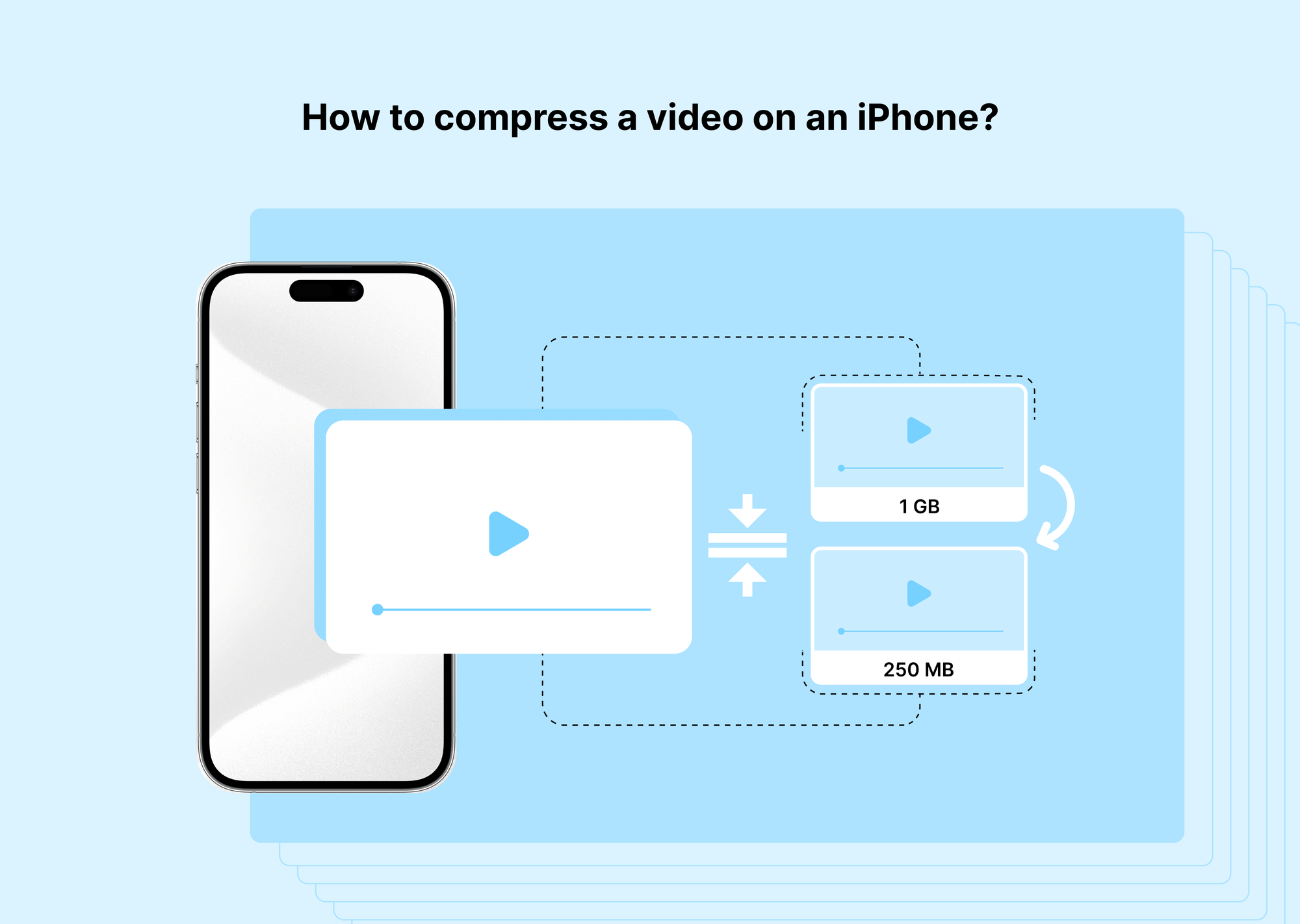
Compressing a video is useful when you need to stay under strict file size limits, especially for email or messaging services that don’t support large files. Although compression reduces the video’s resolution and quality, it can make sharing much faster and more practical when bandwidth is limited.
Method 8: Use a Video Hosting Platform
When you need to share videos professionally—whether it’s with clients, your team, or a large audience—using a dedicated hosting platform like Gumlet offers the most polished experience. Gumlet makes it effortless to upload, stream, and share videos in their original quality, complete with privacy controls, detailed analytics, and fast, optimized playback on any device.
Step-by-Step Guide:
- Sign up for a Gumlet account and log in.
- Upload your video file directly from your iPhone or computer.
- Configure sharing options, including privacy settings and access controls.
- Generate a shareable link or an embed code.
- Send the link to your audience via email, text, or social channels.
Why Use This Method:
Gumlet allows you to host videos without any compression, ensuring your viewers see them precisely as you intended. You can also monitor video performance through detailed analytics, manage who can access your content, and embed videos directly on websites or landing pages. This makes it an ideal solution for business or creative professionals who want to maintain control over their video assets.
Reference Table: Comparison of Methods
| Method | Compression? | Maximum File Size | Suitable For |
|---|---|---|---|
| iCloud Link | None | ~5GB | Anyone with a web browser |
| AirDrop | None | No official limit | Nearby Apple devices |
| WeTransfer | None | Up to 2GB (free version) | All devices |
| Some compression | Up to 2GB | All devices | |
| iMessage | Yes (if large) | ~100MB recommended | Apple devices only |
| Email with Mail Drop | None | Up to 5GB | All devices |
| Compression Apps | Reduces quality | Any (reduced size) | All devices |
| Gumlet | None | No strict limit | All devices, professional sharing |
How to Send Long Videos Without Losing Quality
One of the most common frustrations iPhone users face is video compression when sharing large files. If you’ve ever sent a long video over text or a messaging app and noticed it looked pixelated or blurry, it’s because many apps automatically reduce resolution to save bandwidth. Luckily, there are reliable ways to send long videos without losing quality, so your recipient can enjoy the footage exactly as you recorded it.
When you want to preserve sharp details and original clarity, avoid sending videos through traditional texting or standard social media apps. Instead, choose tools that maintain the full resolution of your videos, regardless of file size. Here are some of the best options:
iCloud Link – This is the easiest method built right into your iPhone. When you generate an iCloud link, the original file is uploaded to your iCloud storage. You can then share a simple link via email, text, or chat. The recipient downloads or streams the video without any compression applied. This is ideal for anyone wondering how to send long videos on iPhone without reducing quality, especially when sharing with other Apple users.
AirDrop – Perfect for nearby transfers between Apple devices, AirDrop sends your video wirelessly over a secure, direct connection. There’s no compression, no loss of detail, and no file size limitations to worry about. This makes it one of the fastest and most reliable ways to send long videos from iPhone to iPhone in full quality.
WeTransfer, SendAnywhere, and Google Drive – If you need to share videos across platforms, these tools are excellent choices.
- WeTransfer lets you upload files up to 2GB for free and generates a download link you can send to anyone.
- SendAnywhere offers quick transfers and supports larger files without compressing them.
- Google Drive allows you to upload and share videos while controlling access permissions. As long as the recipient downloads the file, it will stay in its original resolution. This is an excellent solution for anyone researching how to send long videos on an iPhone to an Android without losing quality.
Gumlet – If you want a truly professional experience, consider hosting your videos with Gumlet. With Gumlet, you can upload and deliver uncompressed videos to clients, team members, or customers. Gumlet provides branded links, advanced privacy settings, and real-time analytics so you can track engagement and ensure videos look perfect on any device. It’s beneficial for businesses, creators, or anyone who frequently shares high-quality videos.
Final Thoughts
You don’t have to settle for pixelated, cropped, or blurry videos when sharing from your iPhone. With the right tools, you can easily send long videos on iPhone without losing any quality. Whether you’re sharing precious family moments or important business recordings, methods like iCloud Link and AirDrop preserve the original resolution so your content always looks its best.
If you need to send long videos on iPhone to Android or other platforms, file-sharing apps like WeTransfer, SendAnywhere, and Google Drive make the process smooth and reliable. For a more professional experience, a dedicated video hosting platform like Gumlet offers branded links, detailed analytics, and complete control over who can access your videos. This is especially helpful if you regularly share high-quality video content with clients or teams.
Always consider a few factors before deciding how to send long videos: the recipient’s device, the file size, and how quickly you need it delivered. By picking the right approach, you’ll never have to worry about video compression or compatibility issues again—and you’ll ensure your videos arrive exactly as you intended.
FAQs
How do I share a 20-minute video from my iPhone?
Use iCloud Link, AirDrop, or a platform like Gumlet to send without compression. For cross-platform sharing, try WeTransfer.
What is the maximum video length to send on an iPhone via text?
iMessage supports about 100MB before it compresses or fails. For longer videos, use Mail Drop or iCloud Link.
Can I send long videos from iPhone to Android without losing quality?
Yes—upload to Google Drive, WeTransfer, or Gumlet, then share the link.
Is it better to use Google Drive or iCloud for long video sharing?
Both work well, but iCloud integrates natively with iPhone and Mail Drop, making it faster for Apple users.
Why does my iPhone compress videos when I send them?
iMessage and some apps automatically reduce resolution to save data and speed delivery.
How to avoid video compression on iPhone when sharing?
Use iCloud Link, AirDrop, Google Drive, or a hosting service like Gumlet for the best quality.